



Benötigen Sie ein eigenes Logo für Ihr Unternehmen oder Ihre Website?
1. Klicken Sie auf diesen Link, der Sie zur Logo Maker-Website weiterleitet.


2. Wählen Sie den Bereich, zu dem Ihr Unternehmen gehört. Klicken Sie auf “NEXT“.
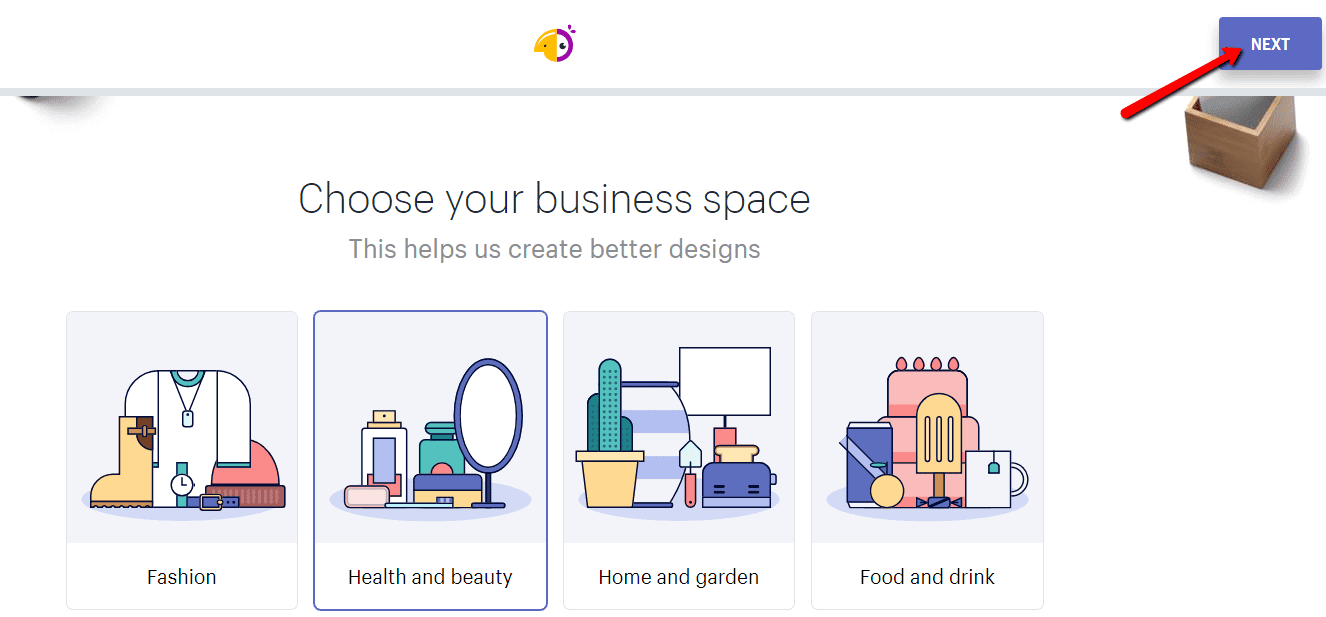

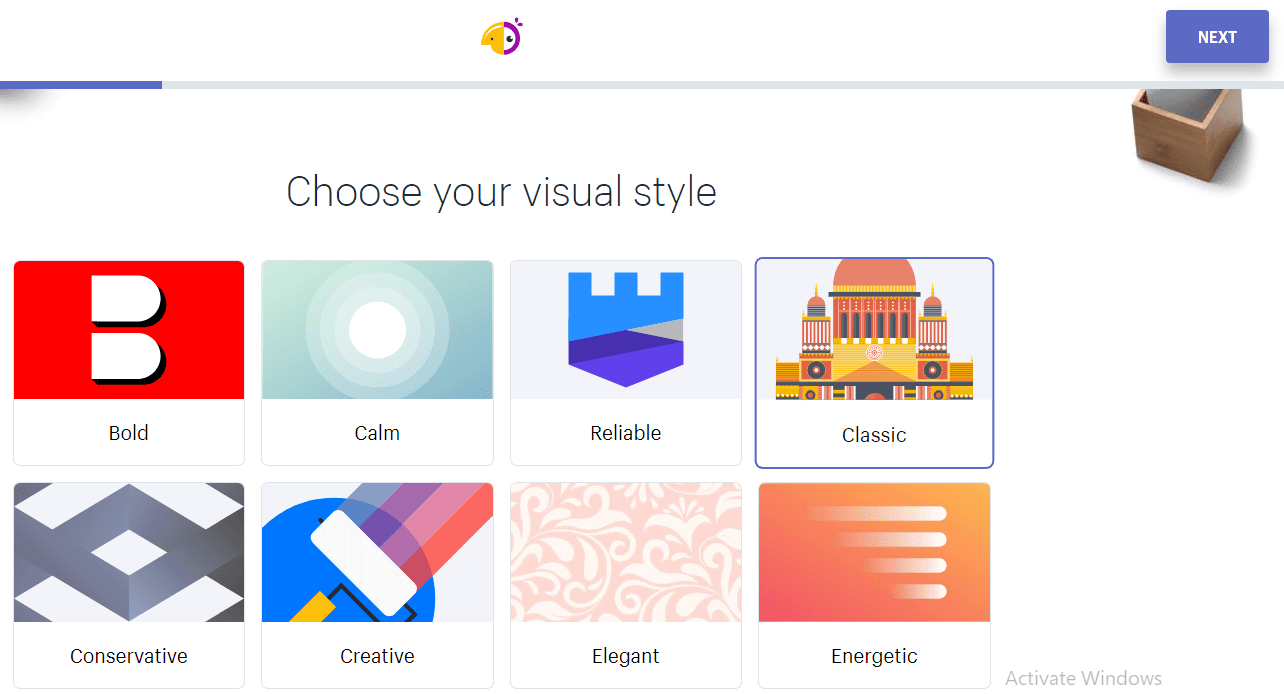
3. Wählen Sie den Stil Ihres neuen Logos. Klicken Sie auf “NEXT”.

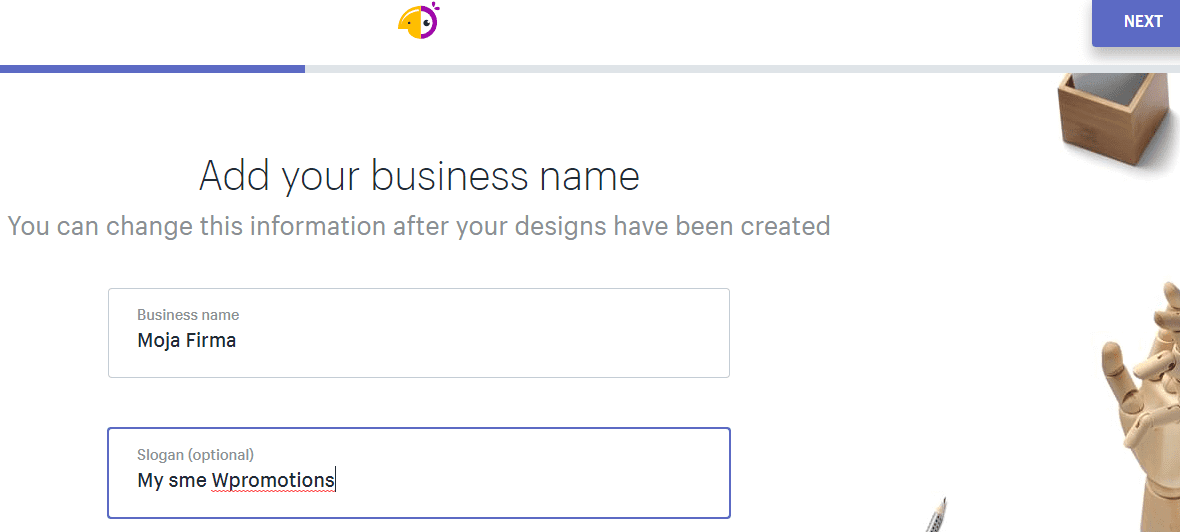
4. Geben Sie Ihren Firmennamen und Ihren Slogan ein.

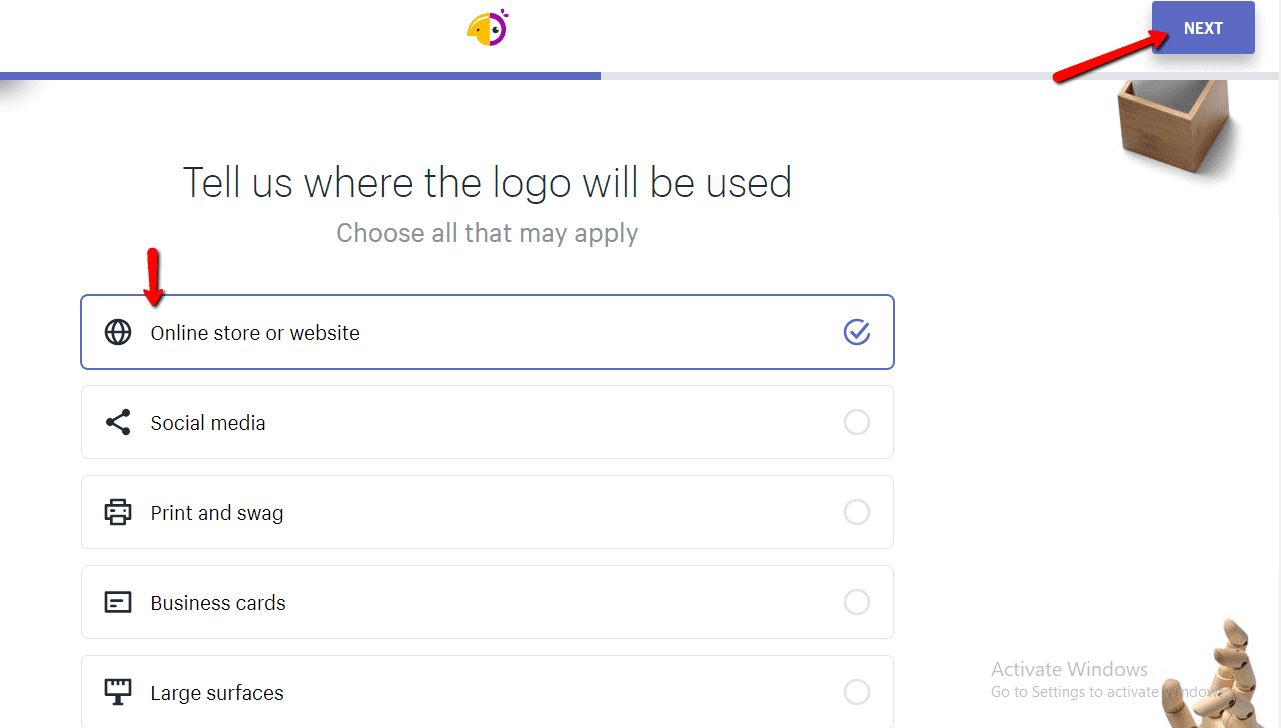
5. Wählen Sie den Zweck, für den Sie das Logo benötigen.

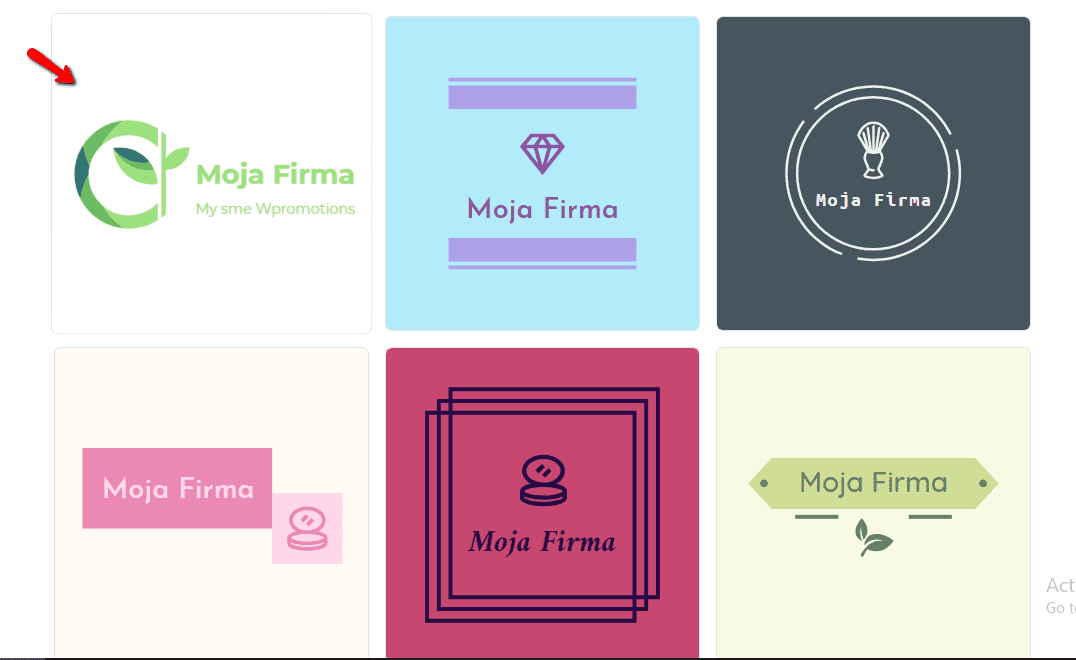
6. Wählen Sie ein LOGO aus dem Angebot aus.

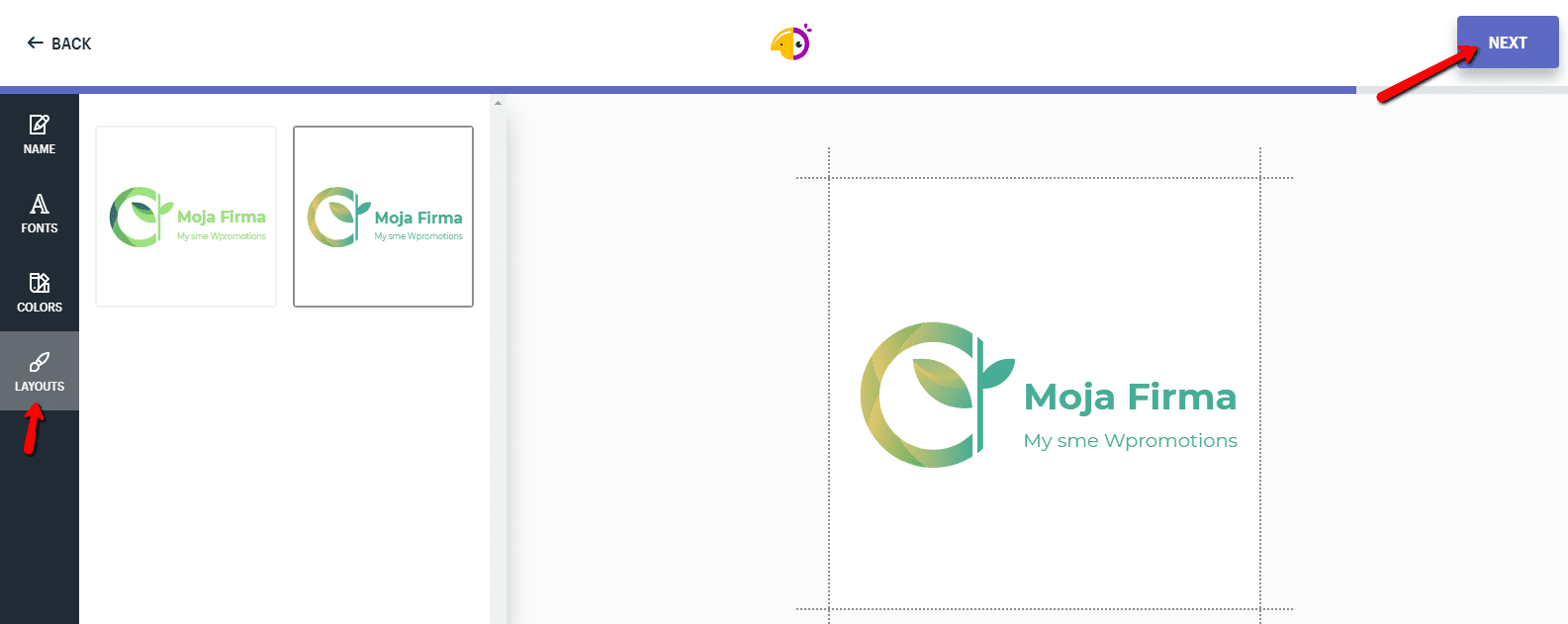
7. Passen Sie Ihr Logo an. Ändern Sie die Schriftart, Farbe oder das allgemeine Erscheinungsbild des Logos. Klicken Sie auf NEXT.

8.Um die Datei mit dem neuen Logo herunterzuladen, klicken Sie auf „Download“ und geben Sie Ihre E-Mail-Adresse ein.
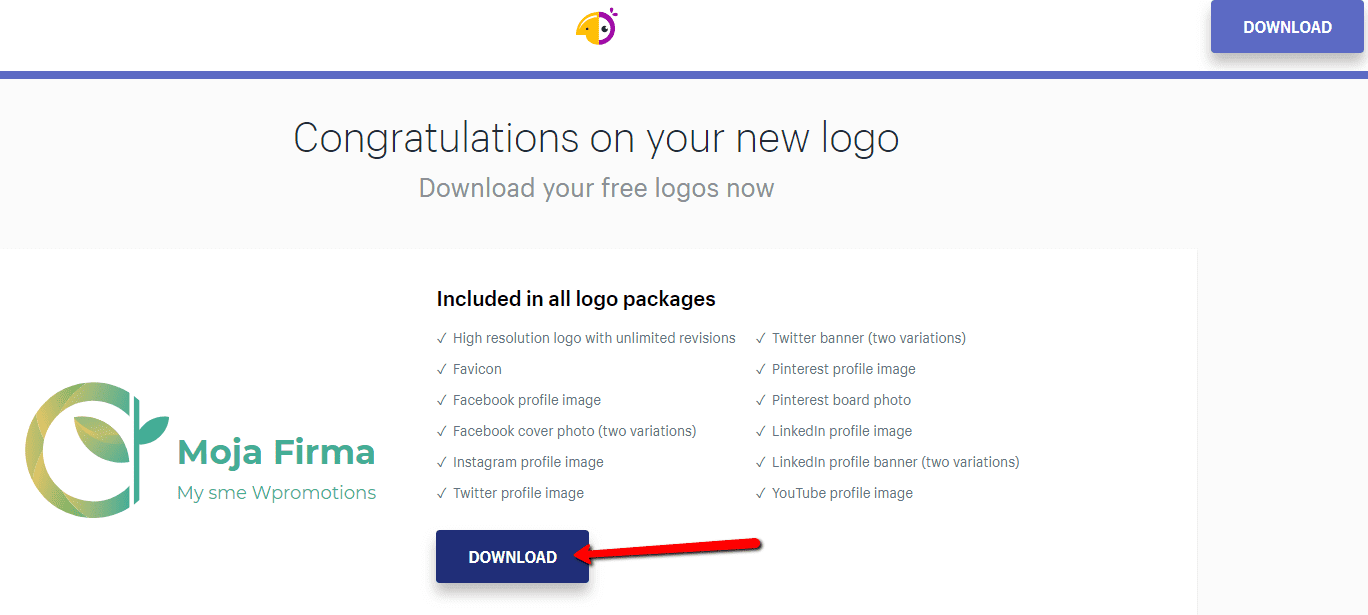

Und Sie sind fertig 🙂 …
Sie erhalten per E-Mail einen Link zum Herunterladen der Datei, der verschiedene Formate enthält, z. B. ein transparentes Logo …
Liste aller Logo-Formate, die Sie kostenlos erhalten:
- High resolution logo with unlimited revisions
- Favicon
- Facebook profile image
- Facebook cover photo (two variations)
- Instagram profile image
- Twitter profile image
- Twitter banner (two variations)
- Pinterest profile image
- Pinterest board photo
- LinkedIn profile image
- LinkedIn profile banner (two variations)
- YouTube profile image
Weitere tolle Tutorials

Wie ändere ich die E-Mail im Kontaktformular bei Webnode?
Möchten Sie die E-Mail für Benachrichtigungen aus dem Kontaktformular ändern? Die E-Mail im Kontaktformularist auf die E-Mail voreingestellt, mit der Sie sich bei Webnode anmelden. Wenn Sie die E-Mail im Formular ändern möchten, folgen Sie dieser Anleitung: 1. Melden...

Ako na web vo Webnode pridať animáciu padajúceho snehu? Padajúci sneh html kód
Chceli by ste vylepšiť Váš web vo Webnode animáciou padajúceho snehu? Žiadny problém! V tomto návode si ukážeme, ako na Váš web pridáte padajúci online sneh. Jednoducho a zdarma. Čítajte ďalej! #Poďme nato! 1. Prihláste sa do editácie webu vo Webnode, a vložte...
Jak na web ve Webnode přidat animaci padajícího sněhu? Padající sníh html kód
Chtěli byste vylepšit Váš web ve Webnode animací padajícího sněhu? Žádný problém! V tomto návodu si ukážeme, jak na Váš web přidáte padající online sníh. Jednoduše a zdarma. Čtěte dál! #Pojďme nato! 1. Přihlaste se do editace webu ve Webnode, a vložte níže...
How to add a snowflake animation to the Webnode site? Falling snow html code
Would you like to improve your Webnode site by animating the falling snow? No problem! In this tutorial, I'll show you how to add falling online snow to your site. Simple and free. Read more! #Let's go! 1. Log in to editing the Webnode site and paste the HTML code...

Recenzia Mioweb | Názory, postrehy a skúsenosti
Recenzia Mioweb - ObsahV recenzii Webnode sme si ukázali podľa môjho názoru najlepší nástroj pre tvorbu prezentačného webu, či jednoduchého e-shopu (v pomere cena vs kvalita / jednoduchosť). Jedného dňa pravdepodobne zistíte, že "mať web" nestačí....

Wie man einen Anker erstellt
Video-Tutorial mit englischen Untertiteln Der Anker funktioniert als Link innerhalb einer einzelnen Seite. Daher wird über den Link keine andere Seite (Website) angezeigt, sondern Sie gelangen an eine andere Stelle auf der Seite, der Sie gerade anschauen. Das...

How to add a searchbox in Webnode website or e-shop?
Would you like a searchbox (searchbar) on your e-shop/website from WEBNODE?Are you looking for a simple and stylish search box that you can put on your website or e-shop in Webnode?Video-tutorialVideotutorial is only in Slovak language.In tutorial How to add a custom...

Recenzia Wix 2021 | Názory, postrehy a skúsenosti
WIX? JEDNODUCHÝ? Jednoduchosť je to posledné, čo vo WIX nájdete. Pokročilý super-editor na tvorbu webu zas vymyslel niečo nové.
Jak přidat vyhledávač produktů (searchbox) ve Webnode e-shopu?
Chtěli byste vyhledávač např. produktů na Vašem e-shopu od Webnode?Hledáte jednoduché a stylové vyhledávací políčko, které si vložíte na Váš web či e-shop ve Webnode?VIDEONÁVOD:V návodu Jak na web přidat vlastní vyhledávací pole? Google Custom Search jsme si ukázali...

