


Webnode Discount Code 2026: Get an Extra 15% Off Premium Plans
Are you already using Webnode, or are you just thinking about creating your website? We have an up-to-date Webnode discount code that gives you 15% off selected Premium plans.
This limited-time offer is valid until January 31, 2026, making it a perfect opportunity to start the new year with a better, more professional website.
We have been writing about Webnode since 2016, and this is the very first time in history that Webnode has offered such a generous discount (via a Webnode discount code)!
With this code, you get:
- 15% off the Premium plan (new activation or renewal of an existing plan)
- Discount valid from December 10, 2025 to January 31, 2026
- Supported plans: Mini, Standard, Profi, Business
Where the Discount Applies
The discount code can be used for websites registered in the following regions:
- Europe
- North America
- Japan
- Taiwan
How to Use the Webnode Discount Code
- Log in to your Webnode account.
- Select the website where you want to activate the Premium plan.
- Go to the Premium Plans section.
- Choose the Mini, Standard, Profi, or Business plan.
- Enter the discount code TBH3-77XA during checkout and click Activate.
- Confirm your order and the discount will be applied automatically.
Why Webnode Premium Is Worth It
- Custom domain with no Webnode ads
- More storage space for content and images
- Advanced features for business and projects
- A professional-looking website
Discount Summary
Discount: additional -15%
Valid until: January 31, 2026
Plans: Mini, Standard, Profi, Business
Regions: Europe, North America, Japan, Taiwan
Discount code: TBH3-77XA
Take advantage of this limited-time offer and get your Webnode Premium plan at a lower price. Don’t wait — this promotion may not be available again.
More awesome tutorials


Los 12 bancos de imágenes gratuitos más grandes para uso comercial. Fotos gratis.
En este tutorial encontrarás enlaces a 12 servicios de fotos gratuitos. Todas las imágenes están ofrecidas bajo licencia CC0. ✔ Las imágenes son para uso comercial. Si has descargado imágenes a través de Google, ¡está mal! Cuando estás creando tu propia...
Hogyan lehet közösségi ikonokat hozzáadni a lábléchez a Webnode webszerkesztőben?
Szeretnél közösségi ikonokat, például a Facebookot, az Instagramot, a YouTube-ot stb. hozzáadni a WEBNODE webhelyed LÁBLÉC részéhez?A közösségi mádia, például a Facebook vagy az Instagram népszerű témák a webhelyemen. Ezeket az oktatóanyagokat már előkészítettem:...
Hogyan lehet cset fórumot hozzáadni a Webnode weboldalhoz? (DISQUS)
YouTube Video Tutorial (english subtitles)Hogyan hozz létre csevegést a disqus.com segítségével. Ebből az útmutatól megtudhatod, hogyan helyezhetsz el csevegést a Webnode weboldalon, hogy látogatóid megjegyzéseket fűzhessenek a weboldaladhoz. Ehhez egy külső...
¿Cómo añadir una página web de Webnode al Motor de Búsqueda de Google?
Añade una página web de Webnode al motor de Motor de Búsqueda de Google Todos estamos familiarizados con el motor de búsqueda de Google, y no hace falta presentároslo. Los motores de búsqueda rastrean las páginas web con regularidad, y cuando encuentran una web...
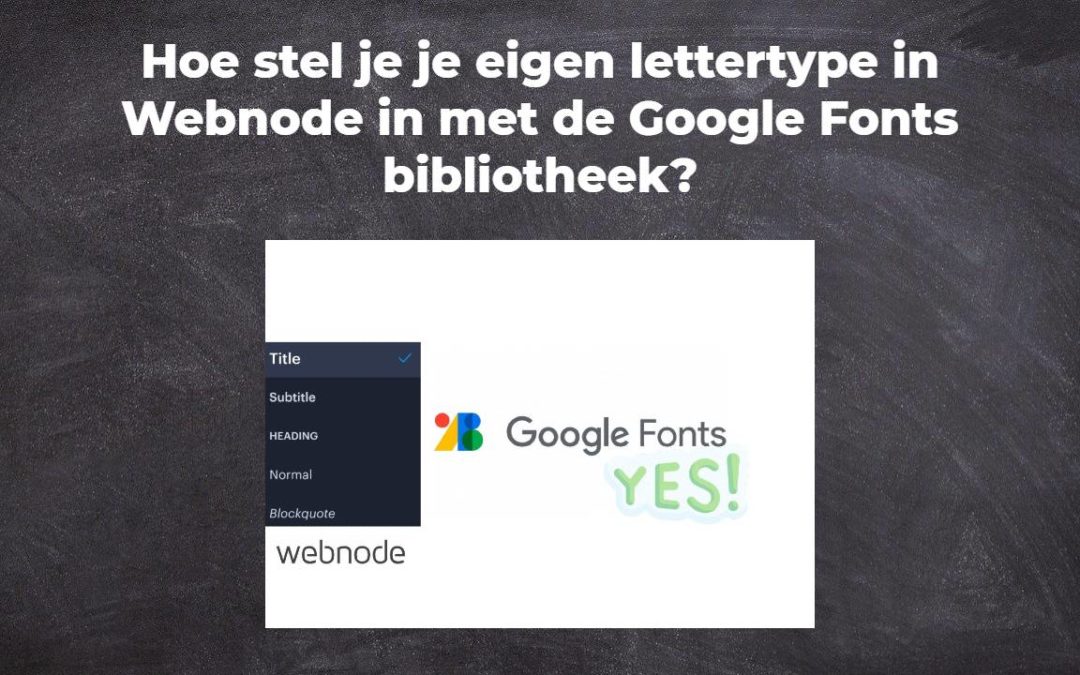
Hoe stel je je eigen lettertype in Webnode in met de Google Fonts bibliotheek?
VideotutorialWil je het lettertype in Webnode veranderen in een van de Google Fonts? Een paar woorden aan het beginMet Webnode kun je het lettertype op je website veranderen onder sectie: "Instellingen" - "Ontwerp" - "Lettertypen". Natuurlijk biedt de Webnode...

Hoe verberg je de categorie “alle producten” in de lijst van producten in de e-shop van Webnode
Hoe verberg je de categorie "Alle producten" in de lijst met producten in de Webnode?In de leerprogramma's Hoe verberg je de winkelwagen in de eshop in Webnode? en Hoe verberg je de publicatiedatum van het artikel in Webnode? hebben we getoond hoe gemakkelijk het is...
Hoe kun je tekst tonen en verbergen door te klikken?
Je hebt te veel tekst op je website, en je moet de tekst tonen / verbergen door erop te klikken, bijvoorbeeld "Meer info" ? Lees meer... Als je veel tekst op de website hebt en je wilt de tekst elegant verbergen door op de knop te klikken, bijvoorbeeld, Om het...
Hoe omleiding naar externe URL instellen vanuit een bladwijzer in het menu in Webnode?
Zoek je een manier om omleiding van Menu in Webnode naar een andere website in te stellen (door op het menu-item te klikken)? Laten we het doen! 1. Maak een nieuwe pagina in Menu. 2. Bewerk de onderstaande code als volgt: Je kunt de waarde van...
Hoe kun je Instagram met je website verbinden in Webnode?
VideoTutorialDus, je wilt je actuele foto's van je Instagram op je Webnode website ZIEN? In de handleiding Hoe voeg je een sociaal netwerk pictogrammen (FB en Instagram) toe aan de bovenkant van de Webnode website? Ik toonde je een heel eenvoudige oplossing -...

