



YouTube Video Tutorial (english subtitles)

Anweisungen zum Erstellen einer Diskussion auf der Website des Diskussionsforums – disqus.com
In dieser Anleitung erfahren Sie, wie Sie der Webnode-Website eine Diskussion hinzufügen, damit Besucher Ihrer Website Kommentare hinzufügen oder diskutieren können.
Wir werden eine externe Anwendung verwenden – HTML-Code.
1. Registrieren Sie sich
Der erste Schritt ist die Registrierung auf disqus.com.


2. Geben Sie die Anmeldedaten ein
Sie können sich mit einem Konto in einem sozialen Netzwerk oder per E-Mail anmelden.
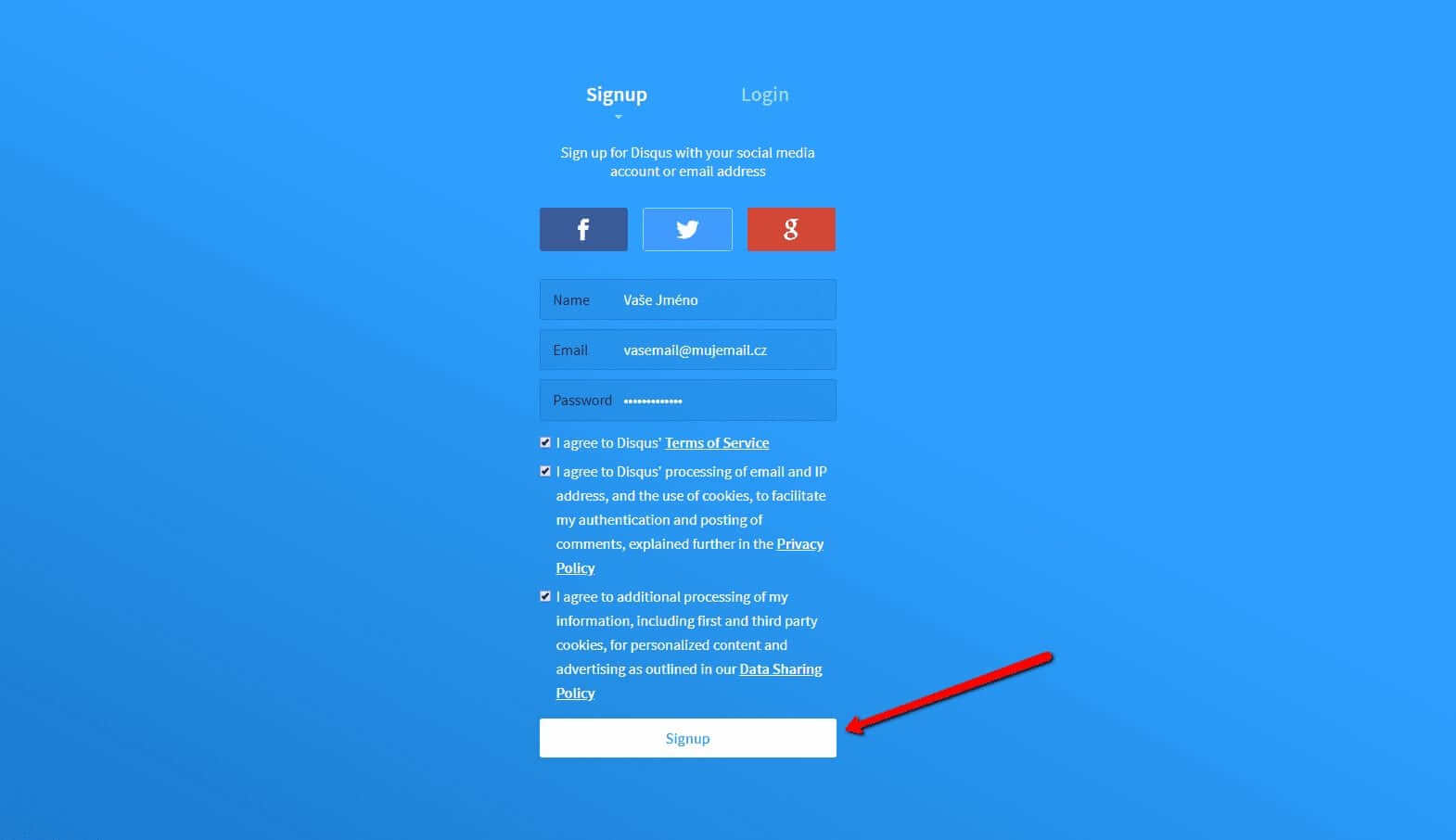

3. Wählen Sie die Option Disqus im Web installieren
Jetzt müssen Sie nur noch den Zweck auswählen, für den Sie Disqus verwenden möchten.
Wählen Sie die zweite Option – “I want to install Disqus on my site“
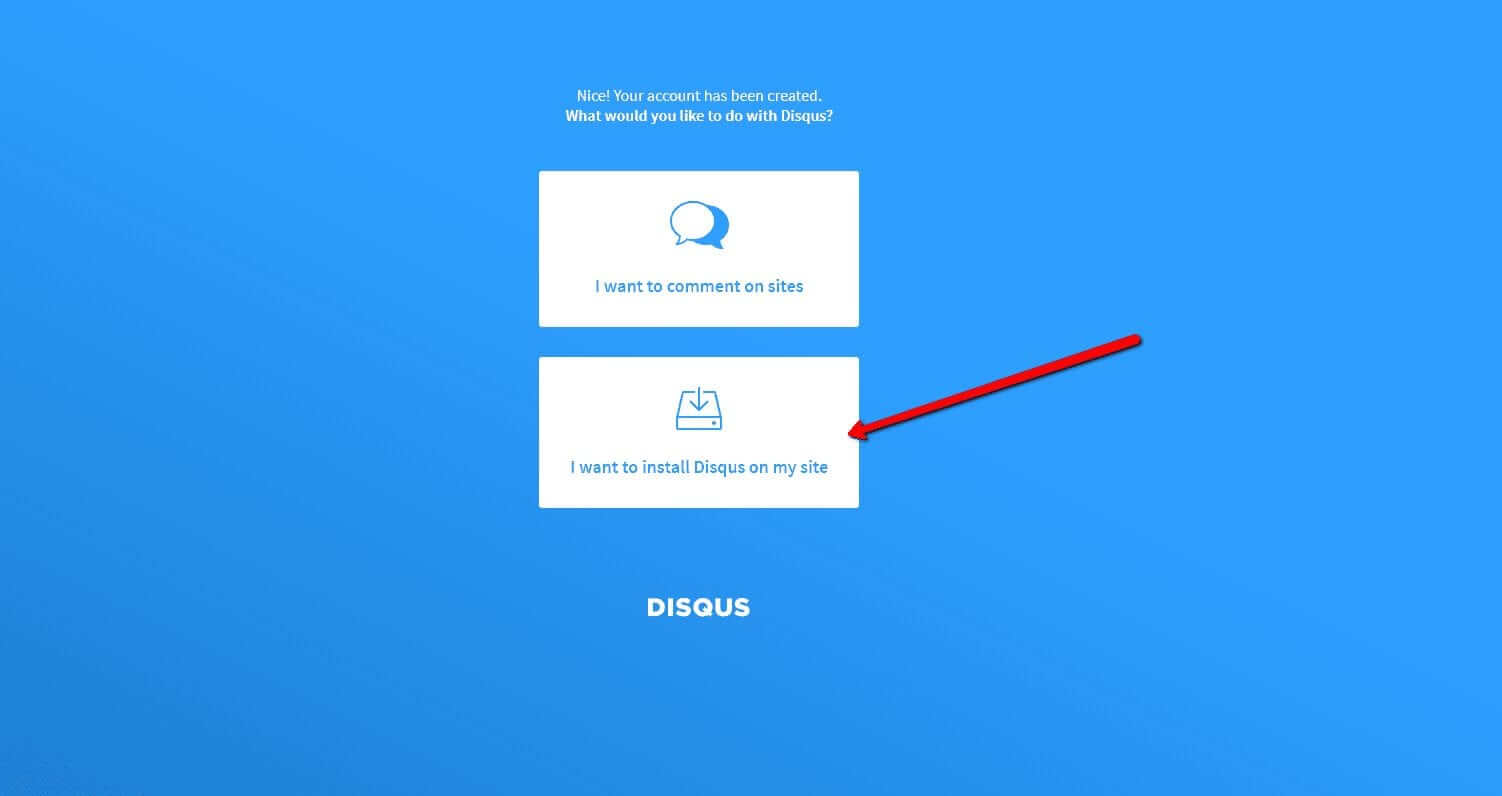

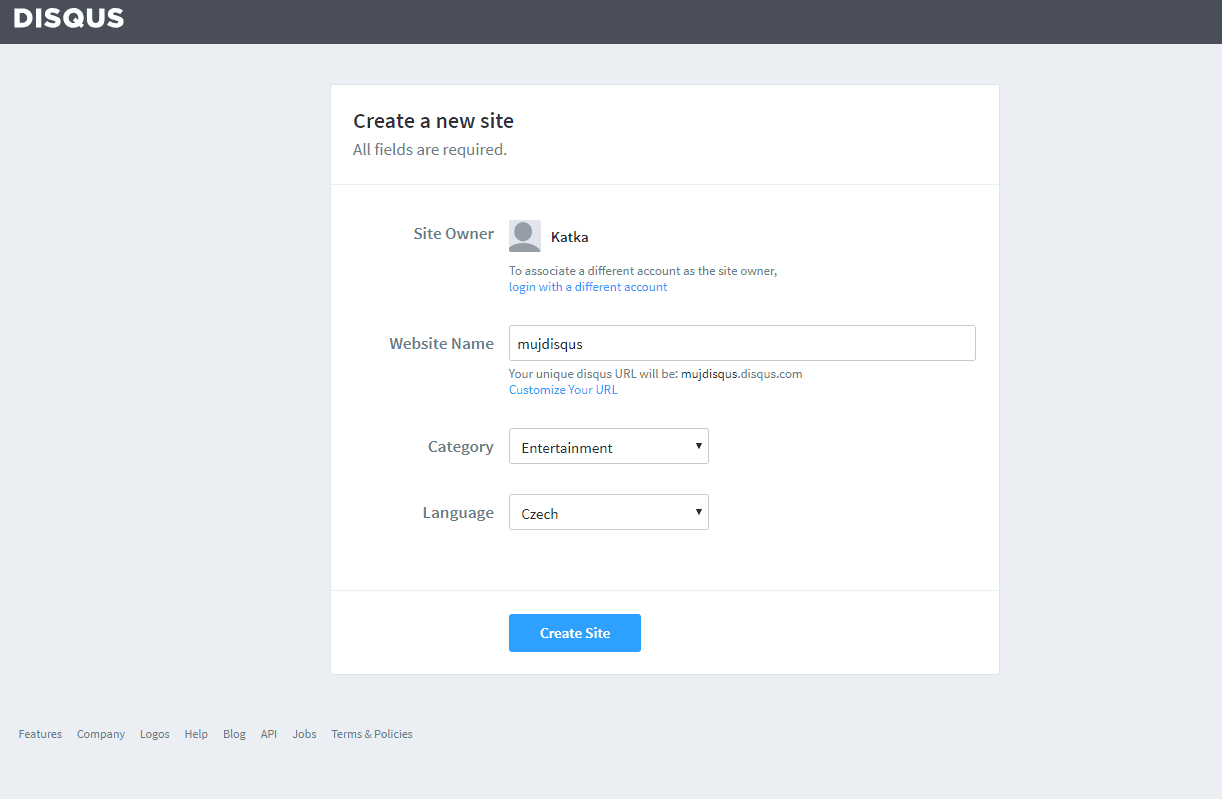
4. Erstellen Sie die Seite
Geben Sie den Seitentitel, die Kategorie und die Sprache ein. Alle Felder sind erforderlich. Bestätigen Sie mit “Create Site“.

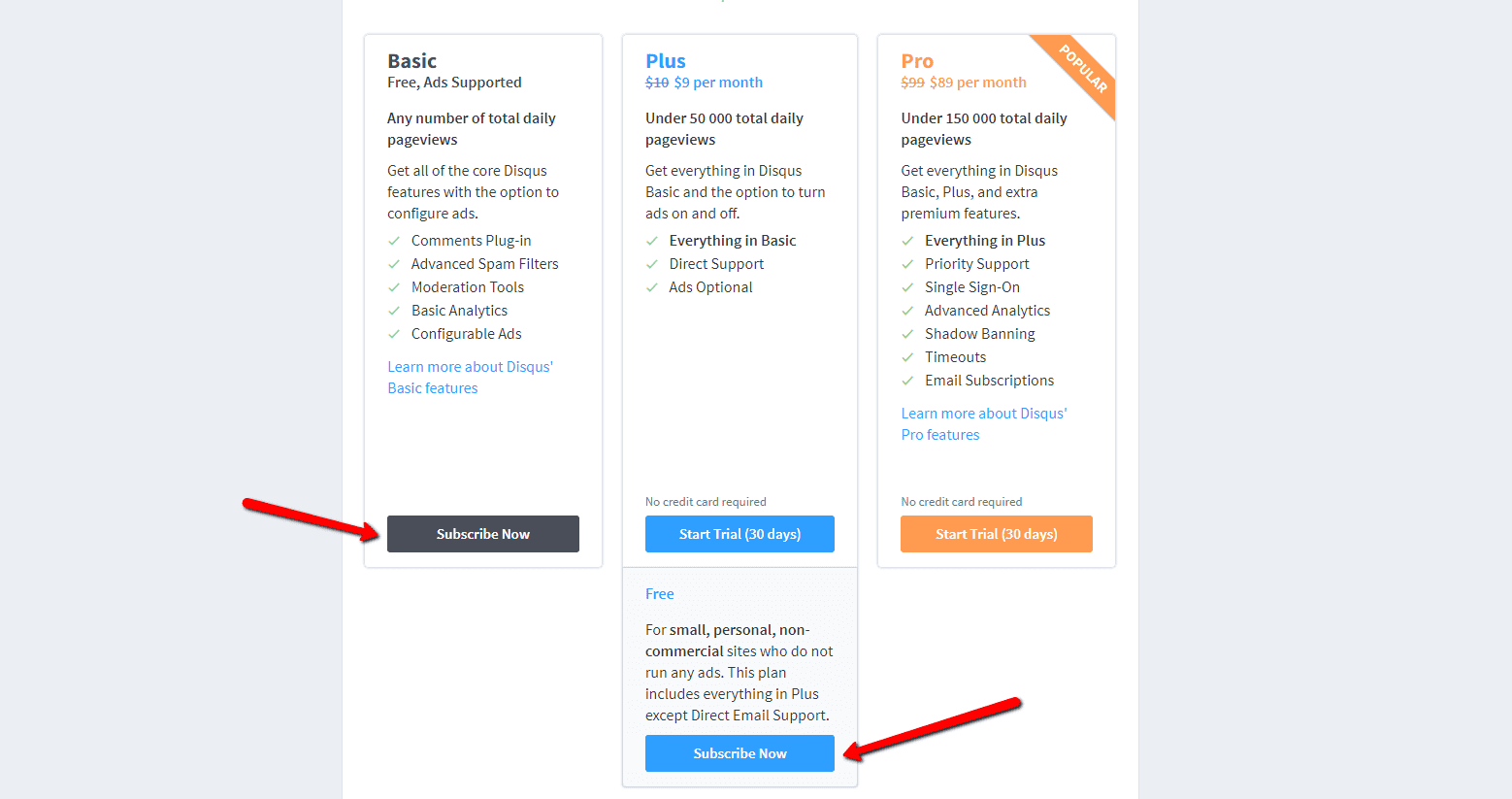
5. Wählen Sie einen Plan
Sie können zwischen kostenlosen Plänen (Basic, Free) und Premium-Plänen (Plus, Pro) wählen. Für den normalen Gebrauch sind kostenlose Pläne ausreichend.
Es ist aber Ihre Entscheidung.

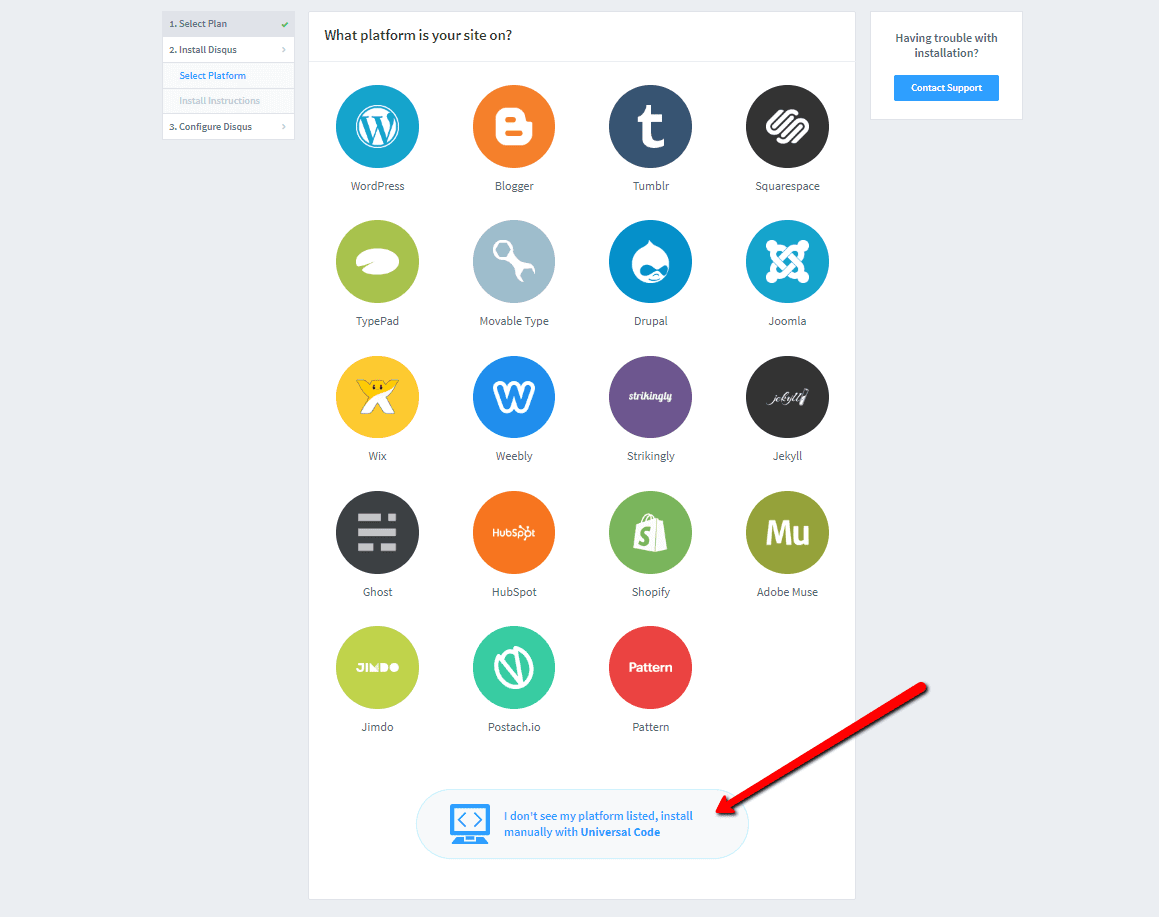
6. Wählen Sie die Webinstallationsoption
Wählen Sie für die Installation das manuelle Einfügen mit Universalcode (“Universal Code“).

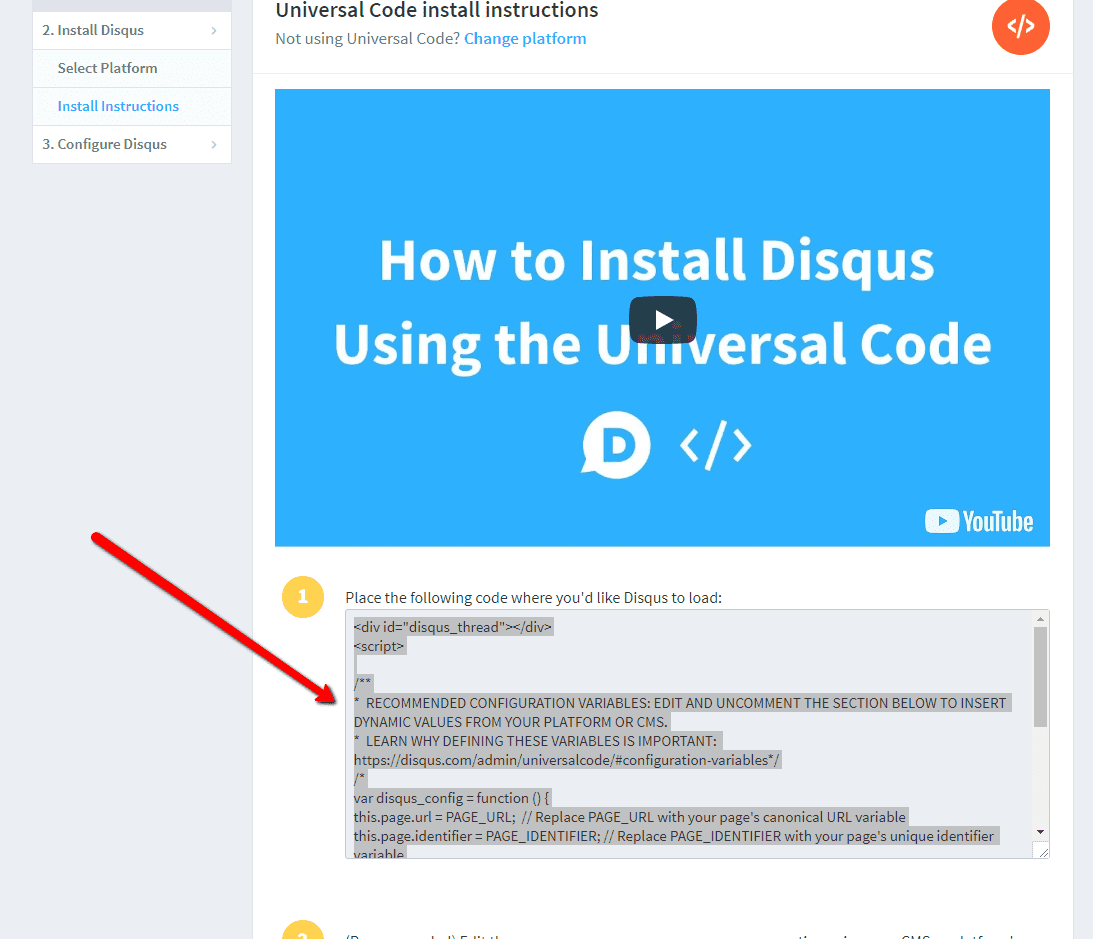
7. Kopieren Sie den Code
Wählen Sie den gesamten HTML-Code in Punkt 1 aus.
Kopieren Sie den Code.

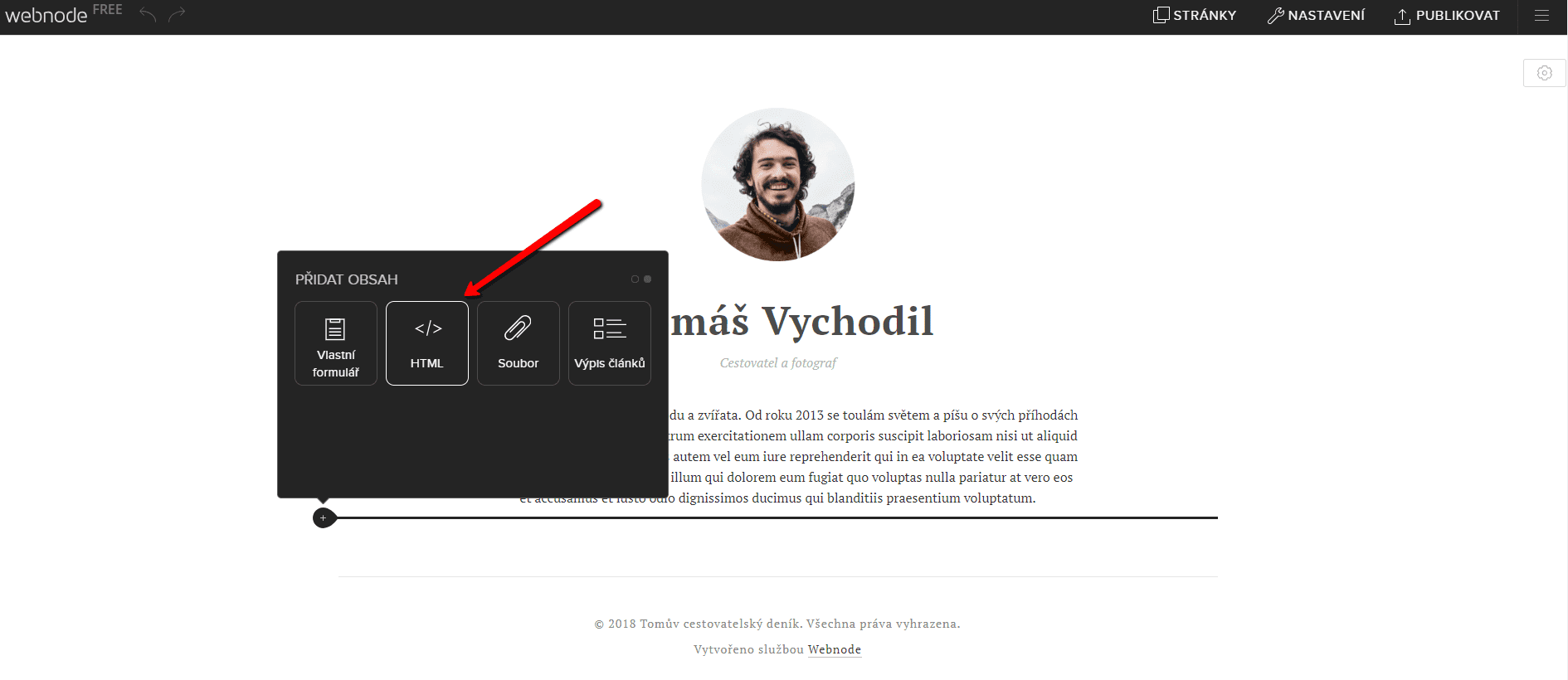
8. Fügen Sie den Code in die Website ein
Gehen Sie im Projekt zu der Stelle, an der Sie das Forum einfügen möchten. Wählen Sie „Inhalt hinzufügen“ → HTML.
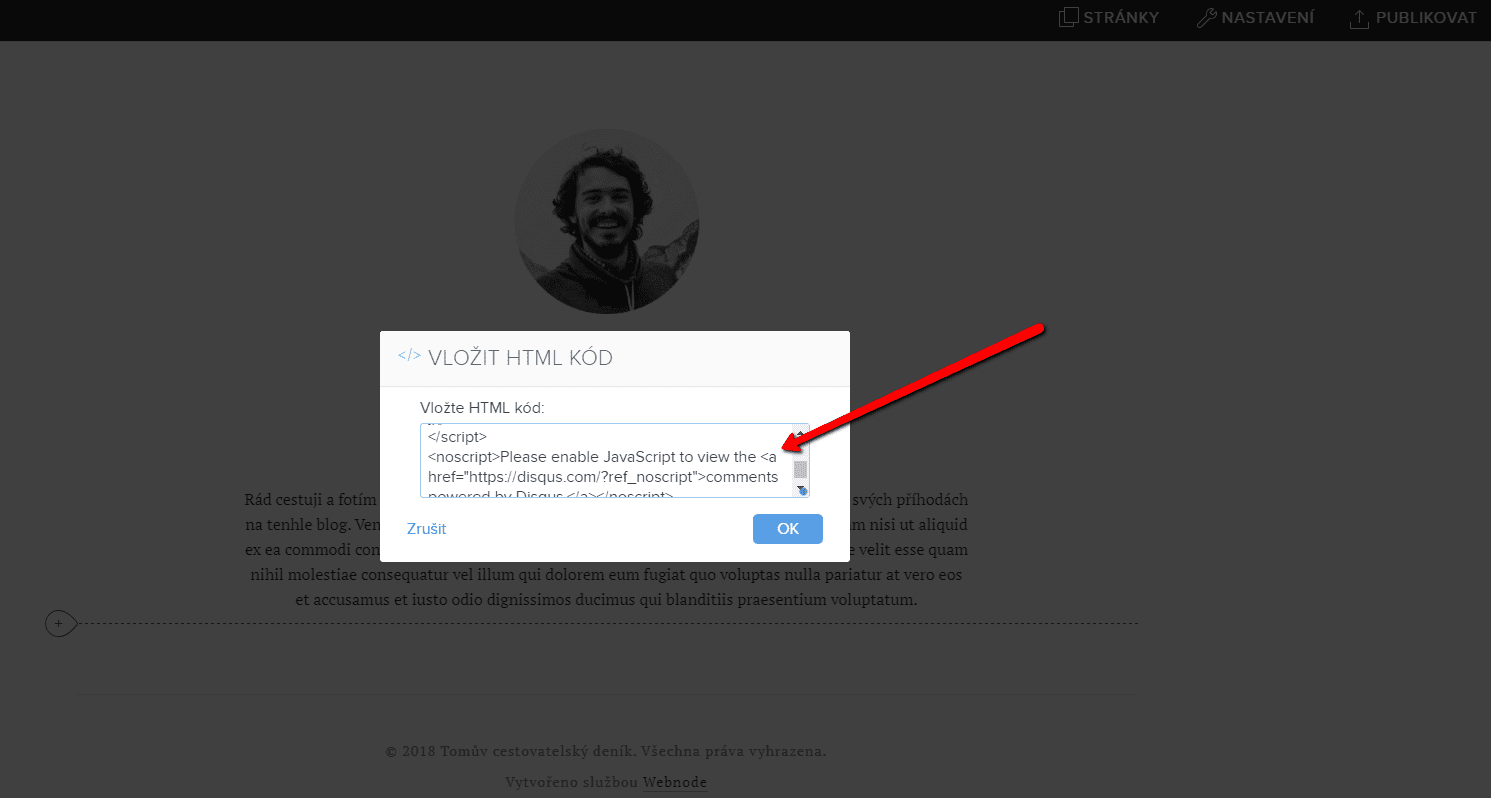
Fügen Sie den gesamten kopierten HTML-Code ein.
Vergessen Sie nicht die Änderung zu publizieren.


.
Und es ist geschafft. Sie können auf dieser Seite sehen, wie das resultierende Forum im Web aussieht:
Weitere tolle Tutorials


How to add a discussion on a Webnode website? (DISQUS)
YouTube Video Tutorial (english subtitles) How to easily create a discussion using - disqus.com In this tutorial, you will learn how to place a discussion on the Webnode website so yours visitors can add comments to the site. We will use an external application - HTML...

Jak Vytvořit Profesionální E-mailový Podpis? Jednoduše a ZDARMA
Hledáte způsob jak si vytvořit emailový podpis? (Gmail, Webmail, Outlook apod) Emailový podpis je nevyhnutelnou součástí moderní komunikace mezi zákazníkem a podnikatelem. Firemní email zvýší důvěryhodnost v očích Vašeho potencionálního klienta. Vytvořte si...

How to easily set up Google Map in Webnode?
Your map in Webnode does not work? Sometimes, when you type an address, the system can not find a specific address, so the map does not work in the published version of the site. In this tutorial i will show u two solutions to fix the problem. So follow these...

How to add an online chat to the Webnode website? FREE!
Do you want to add an online chat on your Webnode website for faster communication with your clients? In this tutorial, I will show you how to easily get a code for an online chat on your website. 1. The first step is registering on the official...

How to create your own company logo? It’s for free
Do you want to create own company logo? You can create own brand new logo in few minutes using free service. I highly recommend it. Its free. 1. Click on this link, which will redirect to official website of this awesome service: Logo Maker. 2. Choose...

How to add a Scroll to Top button to website in Webnode?
Videotutorial in Slovak language with ENGLISH subtitlesDo you want to add a Scroll Top button on your Webnode website? In tutorial "How to create anchor links in Webnode? Click&Scroll" i've shown how to redirect (scroll) to a specific place on the web. An...

How to add a responsive table to a Webnode website?
Do you need to add a table to your Webnode website? In Webnode editor this function is missing, but the table can be created using external app - tablesgenerator.com. Instructions for creating and inserting a spreadsheet for Webnode Webpages. 1....

How to easily set an automatic redirection on your Webnode website?
Looking for a way to automatically redirect your website visitor to another website? (URL address) Follow these steps: 1. Edit and copy the HTML code below. In the code, edit the URL value. In place of the URL, enter the URL address (website) to which you want...

