


Videotutorial with ENG subtitles
The anchor works as a link within a single page. You do not see a different page (web) through the link, but you will be taken to another place on the page you are currently viewing. Anchor formation (tabs) is divided into two parts:
- You first create a bookmark, so a place that appears when you click the link.
2. Then you set a link that moves you to the tab (anchor).
The anchor is set by Webnode using HTML code.
#Step n.1 Creating an anchor
Add a bookmark to the desired location on your site. Each tab needs to be named exactly – names can not be repeated within one site. You can use this HTML code to create anchor:
Instead of XXXXXXX enter the name of the anchor eg. anchor1
#Step n.2 Set a link
By clicking on the link, you will be redirected to the anchor – the link is usually set to normal text, but it can be, for example, also set to an image or button, etc. Use the following code to insert a regular text link:
Instead of #XXXXXXX enter the anchor name from point 1
Example:
The “Click on this text” below is the anchor that is set at the beginning of this article. At the beginning of this article is an embedded HTML code in the form of:
The text you click on is embedded with HTML code that is in the form of:
You can try it out and click the “Click on this text” below.
TIP:
You can also set the anchor in the Webnode as scroll to top button, for example: “To the top”.
1. Firstly insert to your website the code from point 1. Enter the code where you want to redirect the visitor.
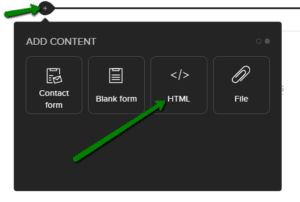

2. Then on the webinsert button that you can name eg: Top
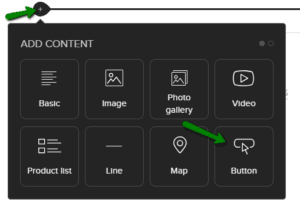

3. Finally set a link to button in form of
BEST TIP: Insert scroll to top button using pre-prepared code 🙂 Just copy and paste it. Read more here: How to add a Scroll to Top button to website in Webnode?
More awesome tutorials

Webnode Discount Code 2026 – Get 15% Off the Premium Plan Today
Webnode Discount Code 2026: Get an Extra 15% Off Premium Plans Are you already using Webnode, or are you just thinking about creating your website? We have an up-to-date Webnode discount code that gives you 15% off selected Premium plans. This limited-time...
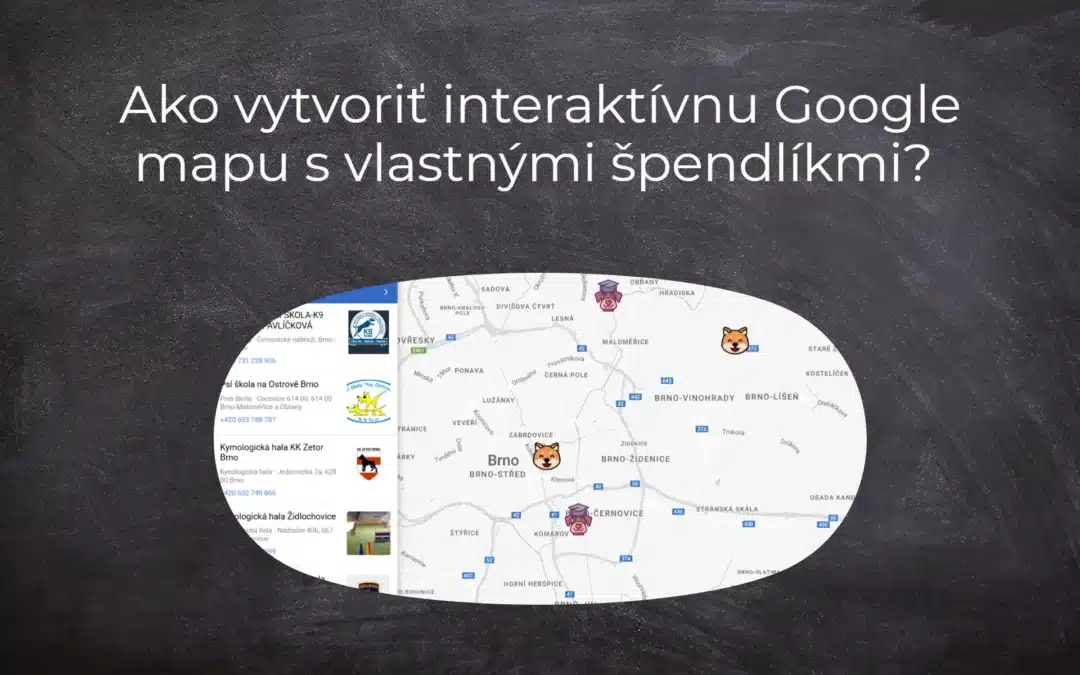
Ako vytvoriť interaktívnu Google mapu s vlastnými špendlíkmi?
Mapa s vlastnými špendlíkmi Interaktívna mapa "Google Maps Widget" - zdarma VS premium Interaktívna mapa s vlastnými špendlíkmi - šablóny NÁVOD: Ako vytvoriť interaktívnu Google mapu s vlastnými špendlíkmi? Pár slov na záver Google mapa s vlastnými špendlíkmi - Časté...
Ako vytvoriť Google Maps API kľúč?
V článku Ako si vytvoriť mapu s vlastnými bodmi (špendlíky na mape)? sme si ukázali, ako vytvoriť mapu cez Google My Maps a pridať na ňu vlastné body/špendlíky. Mapa vytvorená pomocou Google My Maps funguje samostatne a nevyžaduje Google Maps API kľúč. Ak chcete...
Ako si založiť Webnode e-shop v roku 2025?
Internetový predaj Čo všetko sa dá predávať cez e-shop? Webnode e-shop - výhody a nevýhody Webnode e-shop - šablóny Webnode e-shop - cenník Webnode e-shop - skúsenosti NÁVOD: Ako si založiť vlastný Webnode e-shop? Pár slov na záver Webnode e-shop - Časté otázky...
Webnode Review: How to create a website/e-shop for free (Webnode review 2025 +SEO TIPS)
Have you ever wanted to create your own website from scratch? Do you want to create a website or e-shop and make it visible on the Internet? Get started right now and learn how to easily create your first custom website.Creating a website with Webnode is so simple...
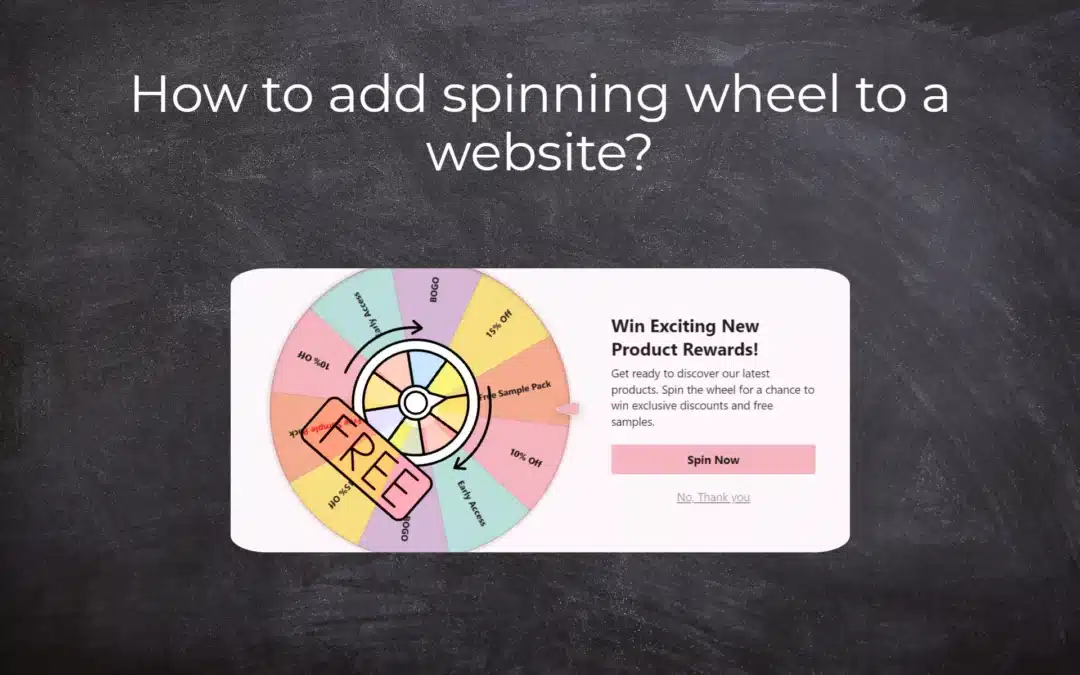
How to add spinning wheel to a website?
Spinning Wheel / Wheel of Fortune Spinning Wheel - Free VS Premium Spinning Wheel - Templates TUTORIAL: How to Add Spinning Wheel to a Website in Webnode? A Few Words at the End Spinning Wheel - FAQSpinning Wheel/ Wheel of FortuneIn previous articles, we explained How...

