
YouTube Video Tutorial (english subtitles)
How to easily create a discussion using – disqus.com
In this tutorial, you will learn how to place a discussion on the Webnode website so yours visitors can add comments to the site.
We will use an external application – HTML code.
1. Sign up.
The first step is to register at disqus.com.

2. Fill in your login information
Sign in with a social network or email account.
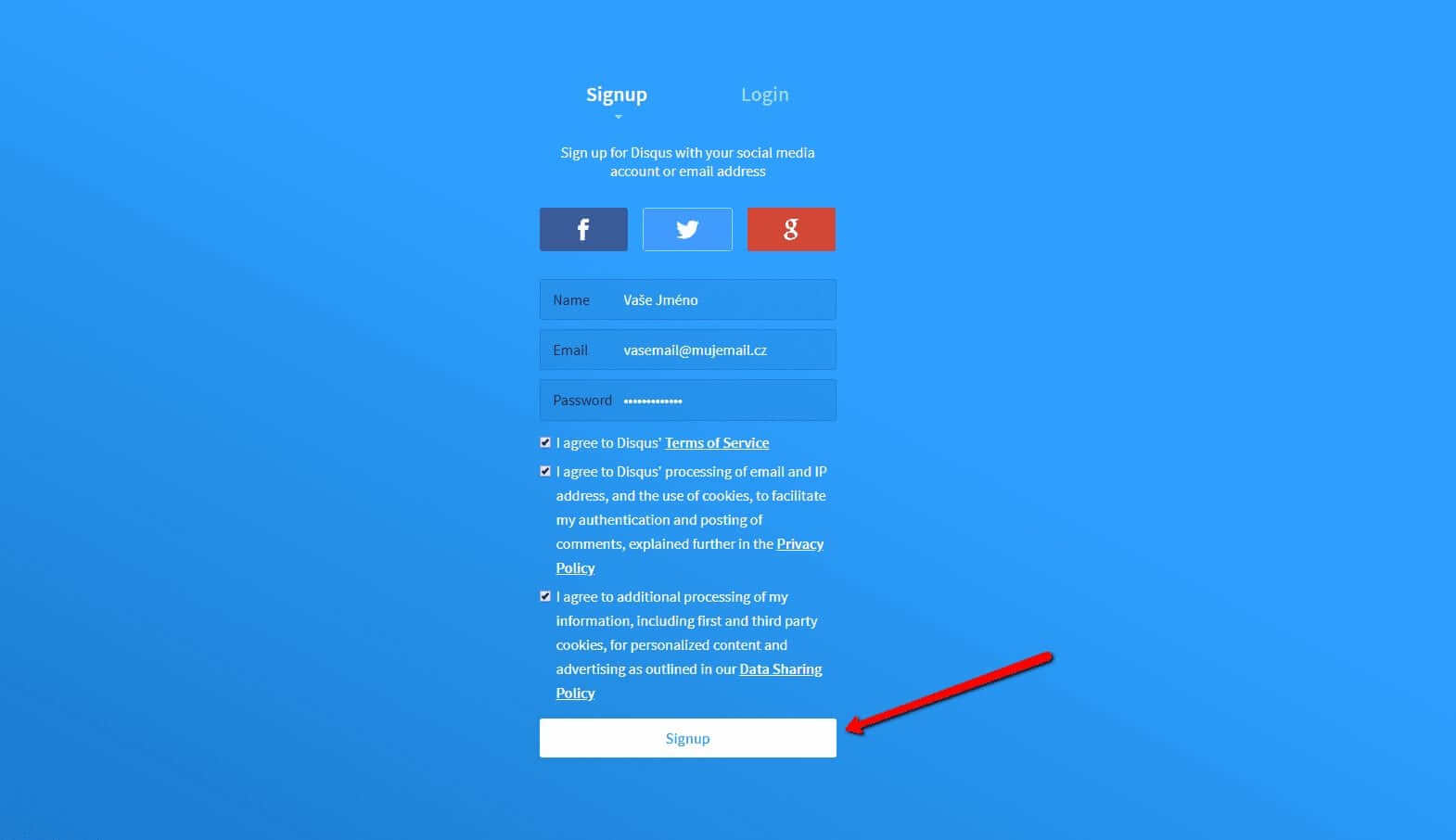
3. Choose the Disqus manual installation option
Now, just choose what Disqus you want to use.
Choose the second option – “I want to install Disqus on my site“.
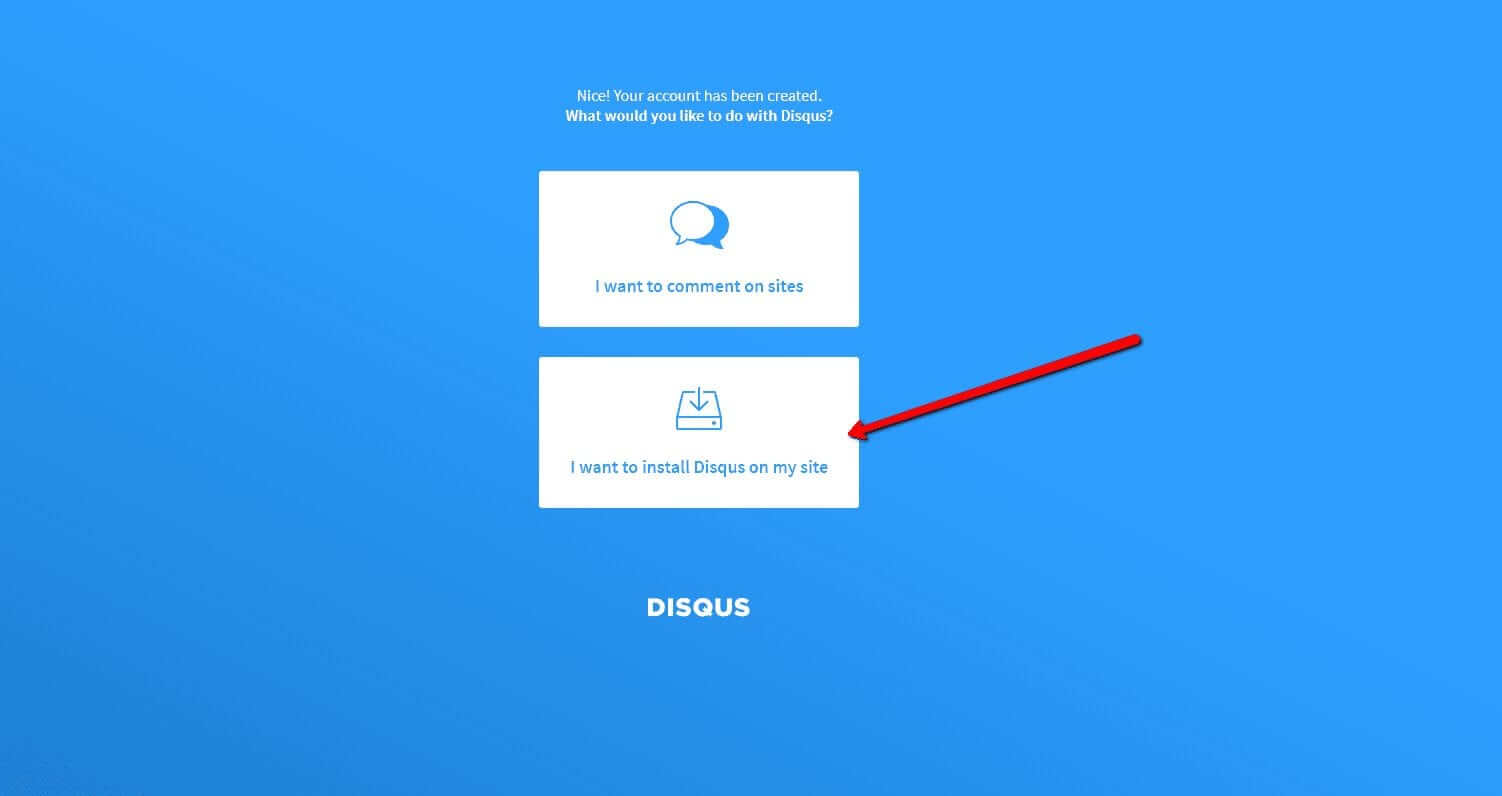
4. Create a site
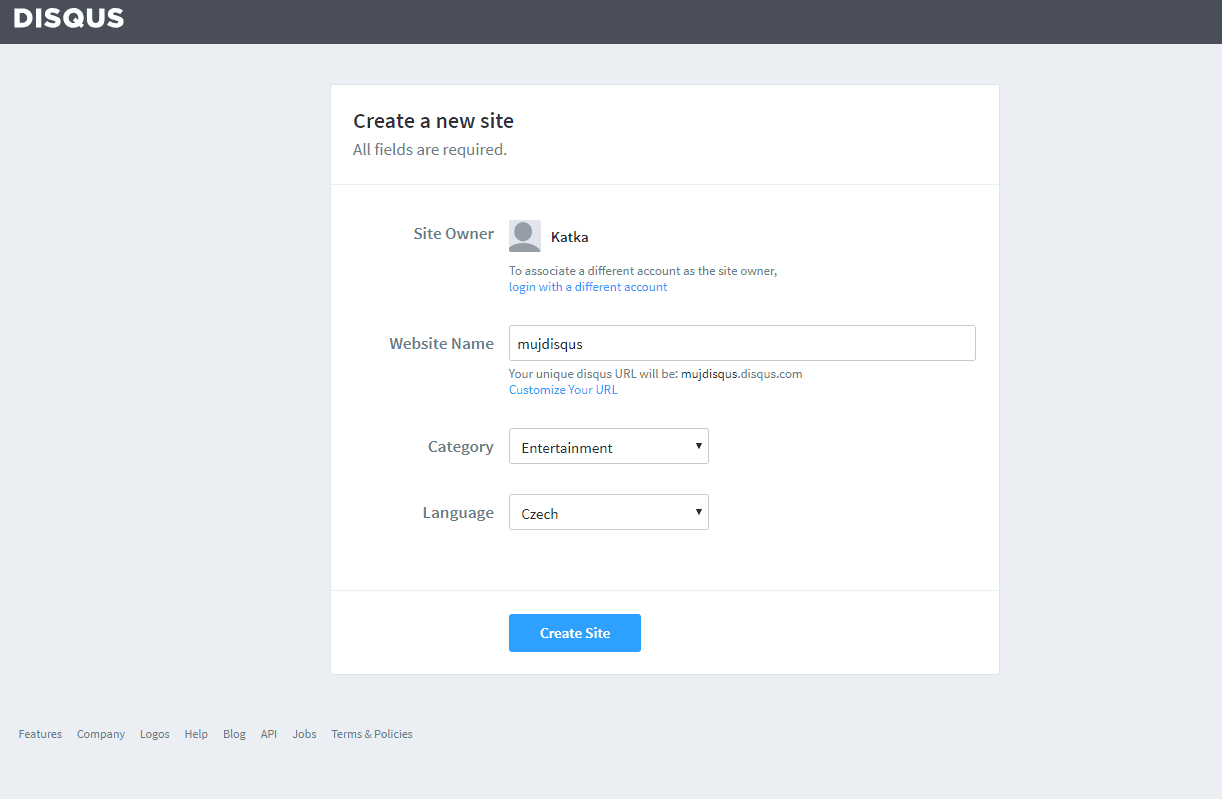
Fill in the page name, category, and language. All fields are required. Confirm with the “Create Site” button.
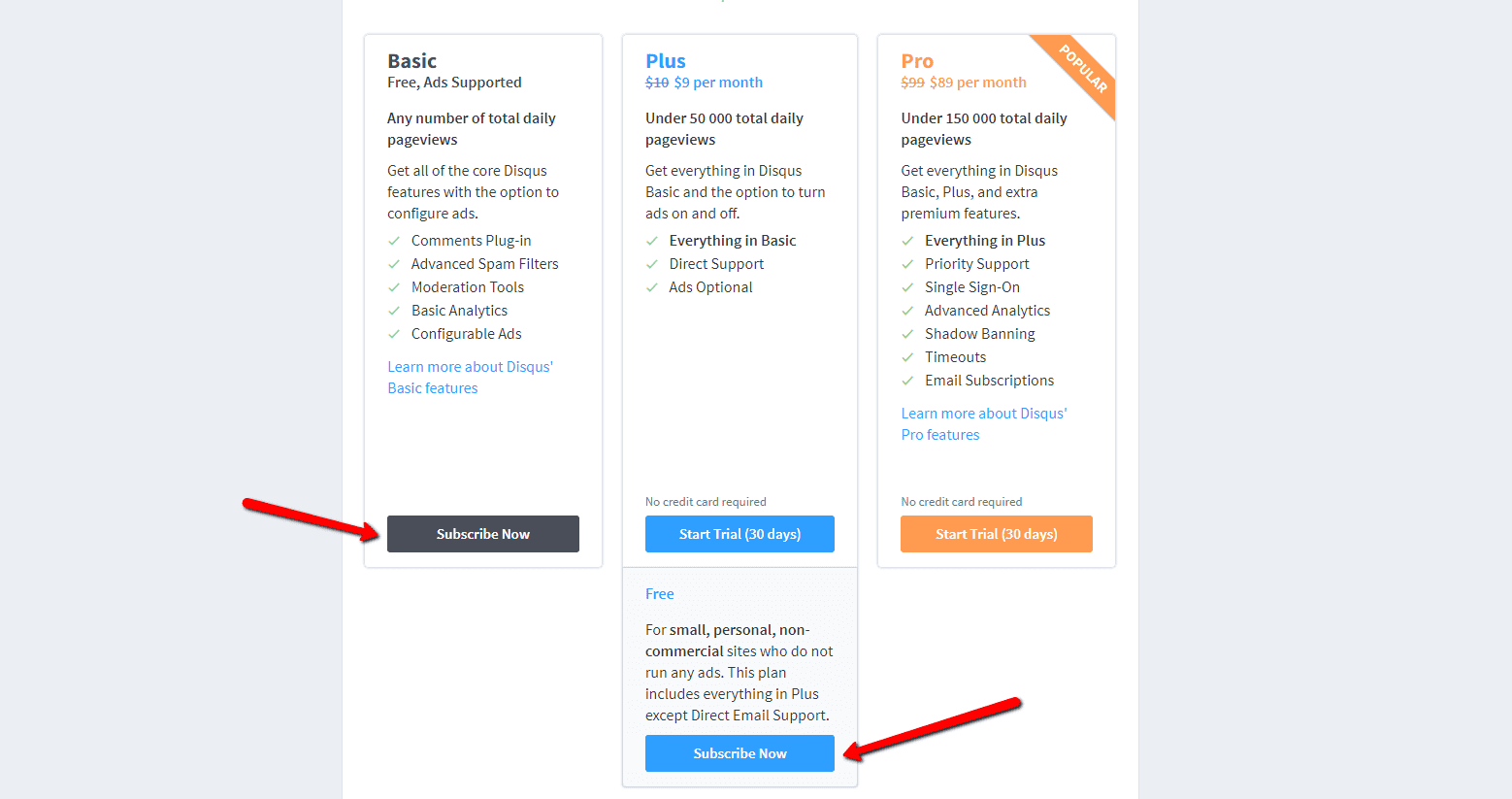
5. Select a Free or Basic plan
You have free (Basic, Free) and Premium (Plus, Pro) plans.
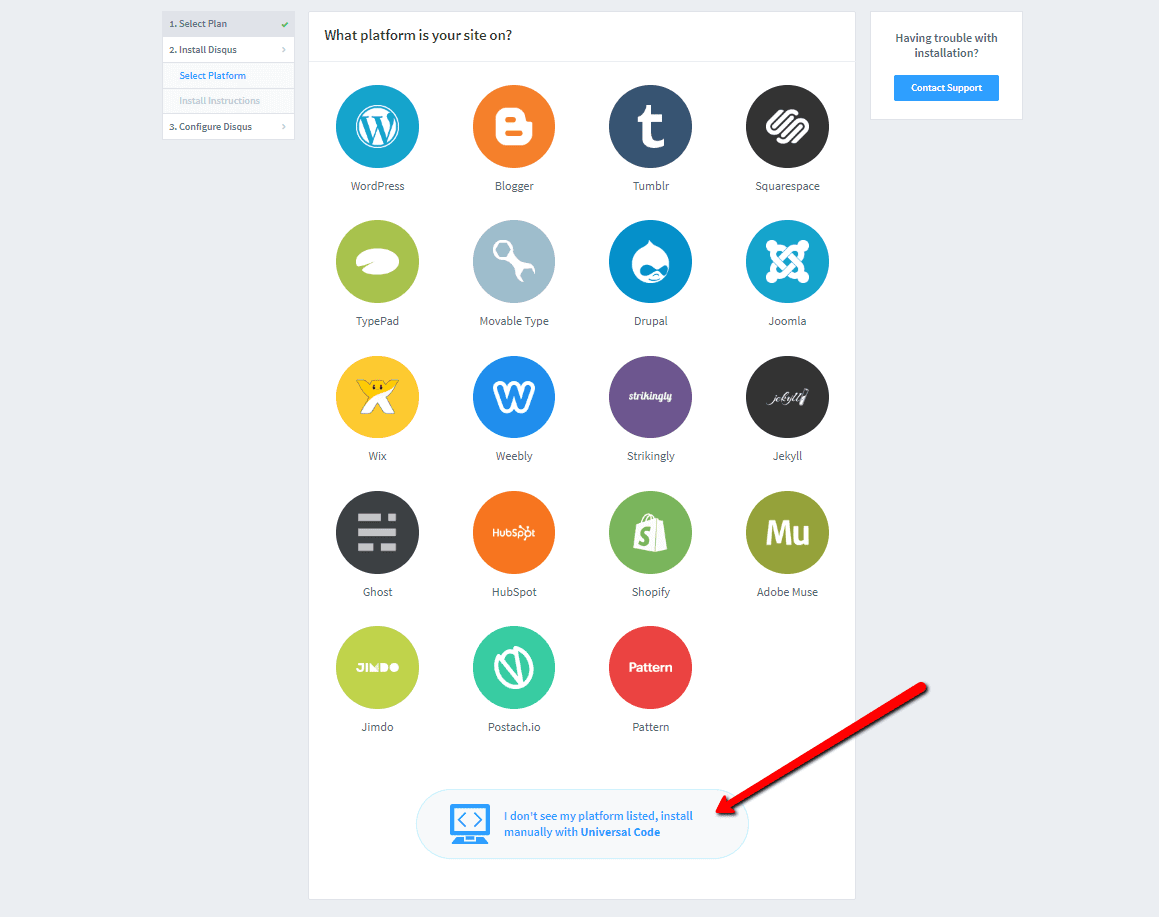
6. Select the option to install on the web
To install, select a Universal Code
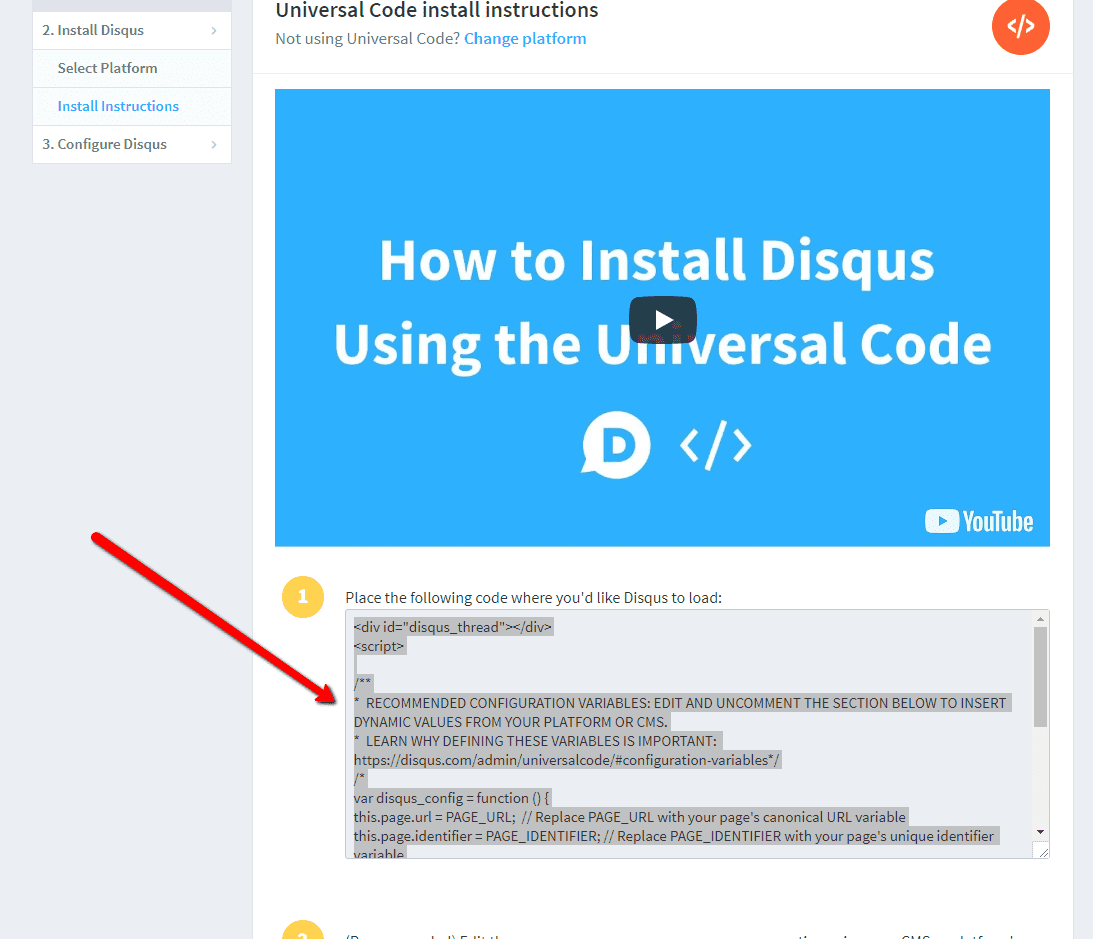
7. Copy the code
Mark the entire HTML code in point 1.
Copy the code.
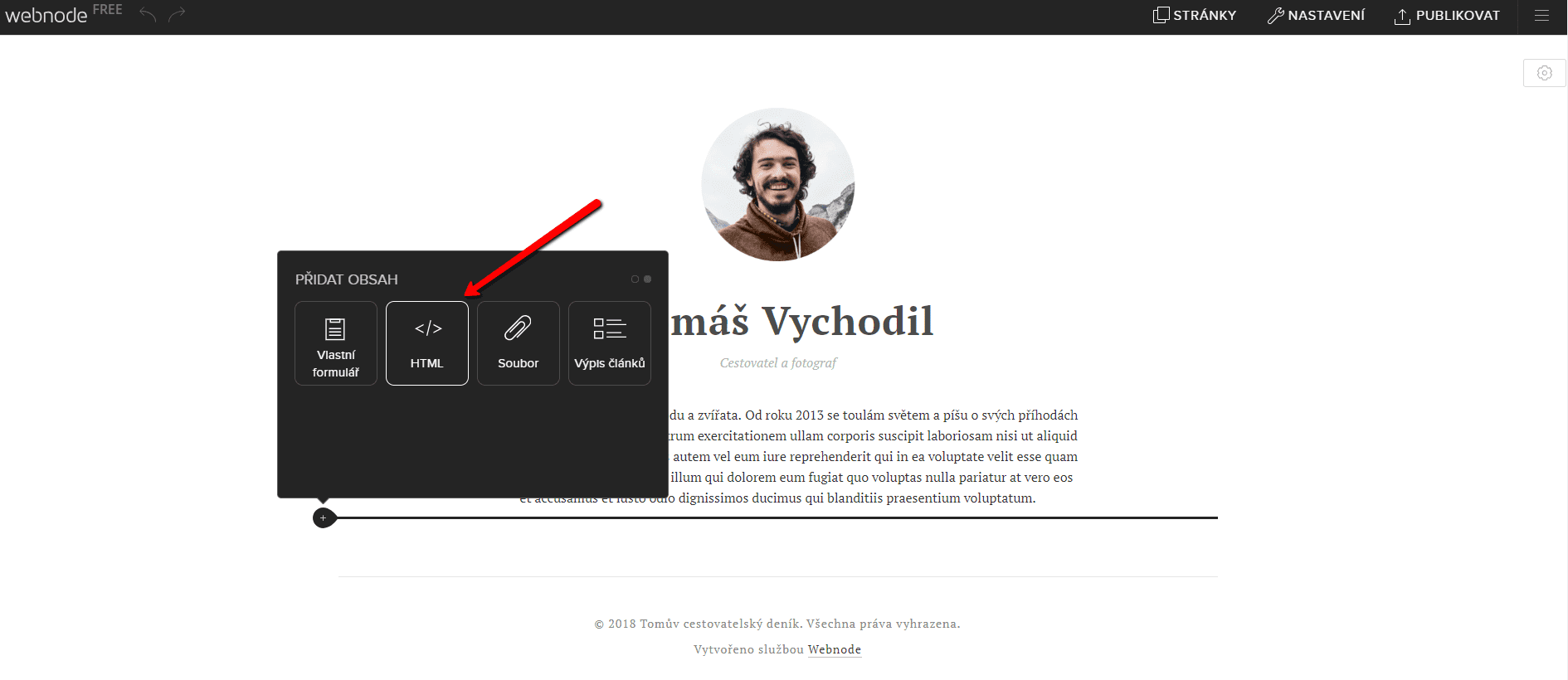
8. Put the code on the web
Go to the site where you want to insert the forum. Select “+” → HTML.
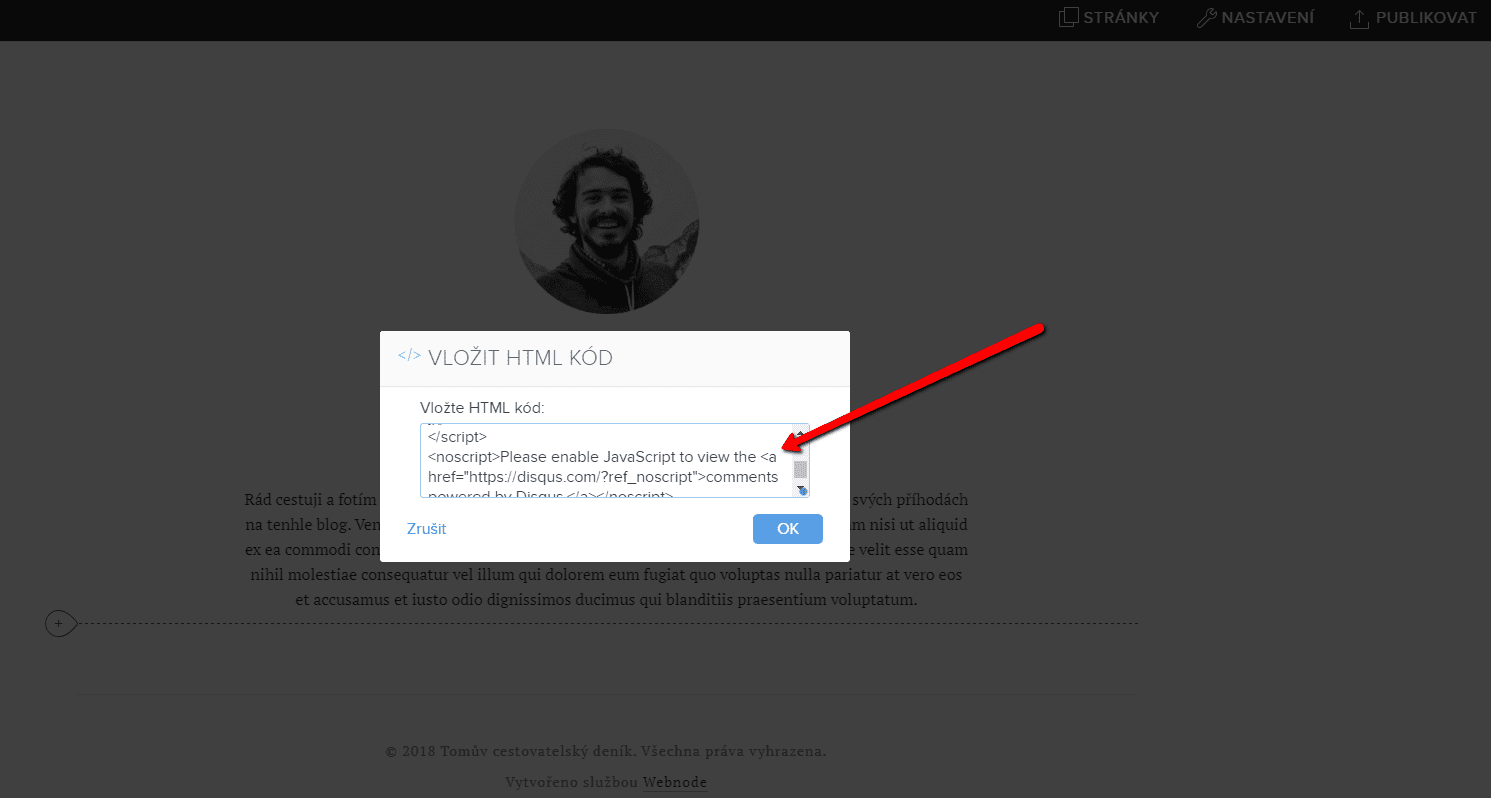
Paste the entire HTML code copied.
Do not forget to publish the changes.
And it’s done .. You can see the resulting forum on the web by clicking the button below.
TIP: Add the Instagram and Facebook icon to the top left corner of the Webnode website. Read More in the tutorial: How to add a social network icons (FB and Instagram) to the top of the Webnode website?
More awesome tutorials

Webnode Discount Code 2026 – Get 15% Off the Premium Plan Today
Webnode Discount Code 2026: Get an Extra 15% Off Premium Plans Are you already using Webnode, or are you just thinking about creating your website? We have an up-to-date Webnode discount code that gives you 15% off selected Premium plans. This limited-time...

Webnode Review: How to create a website/e-shop for free (Webnode review 2025 +SEO TIPS)
Have you ever wanted to create your own website from scratch? Do you want to create a website or e-shop and make it visible on the Internet? Get started right now and learn how to easily create your first custom website.Creating a website with Webnode is so simple...

How to add spinning wheel to a website?
Spinning Wheel / Wheel of Fortune Spinning Wheel - Free VS Premium Spinning Wheel - Templates TUTORIAL: How to Add Spinning Wheel to a Website in Webnode? A Few Words at the End Spinning Wheel - FAQSpinning Wheel/ Wheel of FortuneIn previous articles, we explained How...
How to add an event calendar to a website?
Event Calendar Event Calendar Widget - Free VS Premium Event Calendar Templates TUTORIAL: How to Add an Event Calendar to a Website? Event Calendar- Preview A Few Words at the End Event Calender - FAQEvent CalendarIn previous articles we focused on How to add number...
How to create a website for free in 6 steps?
Websites for Free Free Websites – Templates Who are Free Websites Suitable for? Websites for Free & Own Domain Free Websites - 5 Proven Tips to Get Started TUTORIAL: How to Create a Website for Free in 6 Steps? A Few Words at the End Websites for Free -...
How to add number counter to website?
Animated Number Counter Number Counter - free VS premium Number Counter - templates TUTORIAL: How to add Number Counter to website? Number Counter - preview A few words at the end Number Counter - FAQAnimated Number CounterIn previous articles, we wrote How to link...
Do you like this tutorial? Share it, please 🙂