Would you like to add your own footer to the web / e-shop in Webnode?
With my simple tutorial, you will definitely be able to do it. Just subscribe to the newsletter and get the code.
Edit the URL and text in my code and paste it into the footer of all pages of your website 🙂
2 easy steps:
1. Get the code and edit (so that the code contains the correct URLs)
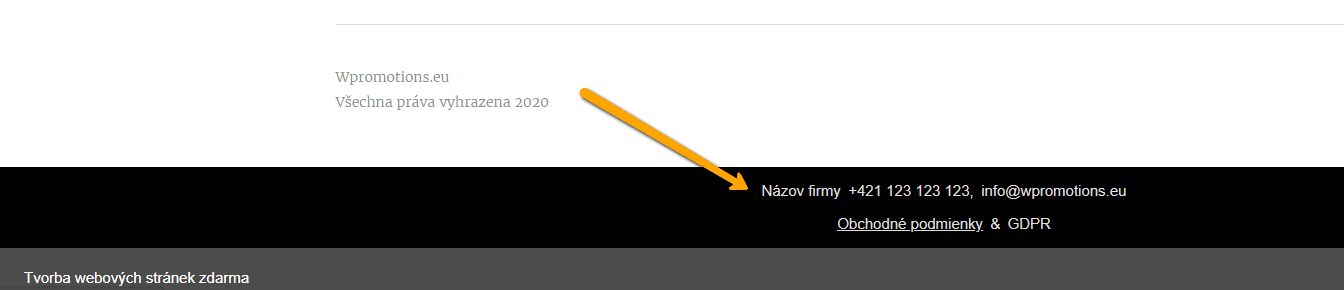
Example of own footer in Webnode with a link to the company name, phone number, email + T&S & GDPR.
Let’s do it!
- Please subscribe to the news on my website and get a pre-prepared code:

2. Edit the URLs and footer text to make everything work properly with your site.
- On line no. 47 change the URL and Company Name
- On line no. 48. change phone no
- On line no. 49 change email
- On lines no. 54 and no. 55 edit the URLs for the terms and conditions and GDPR.
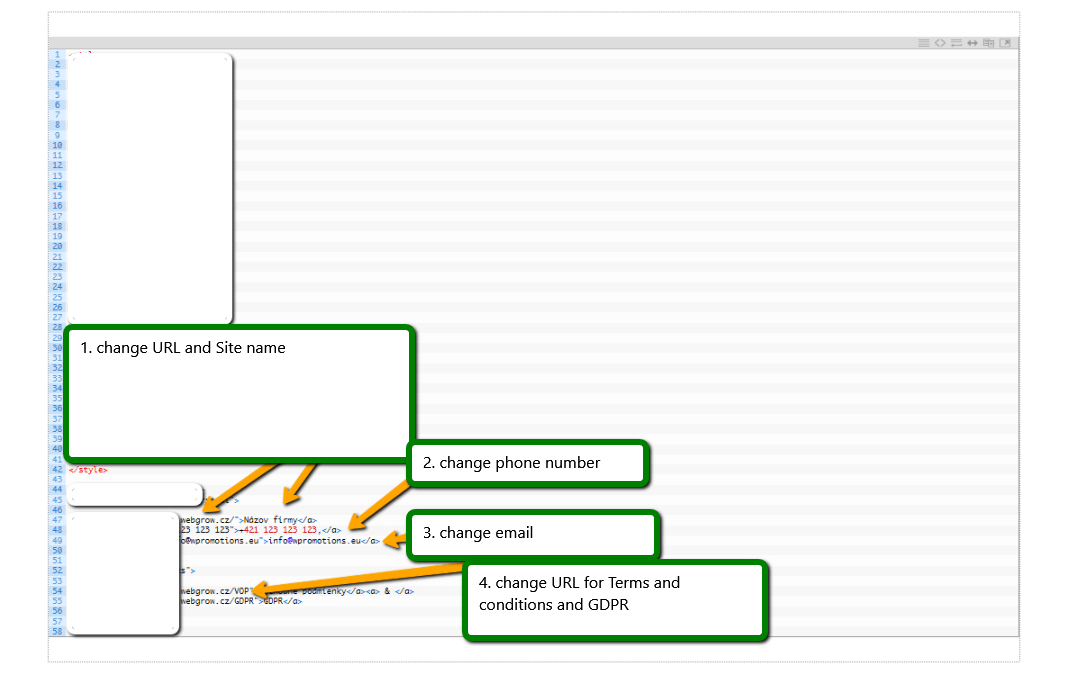
TIP: If you would like to have a link in the footer only to the terms and conditions + GDRP, then delete line no. In the code. 47,48,49.
3. If you have a code, copy and paste it into the header of all pages.
Choose how you enter the code, depending on which Premium Plan you have purchased from Webnode:
1. I have purchased Premium Plan STANDARD or PROFI
If you have purchased Standard or Profi Premium Plan from Webnode, you can paste the code into all pages of the site with a single paste.
At the top of the editor, click “Settings” – “Website Settings” – “HTML Header / Footer” – “HTML Footer“.
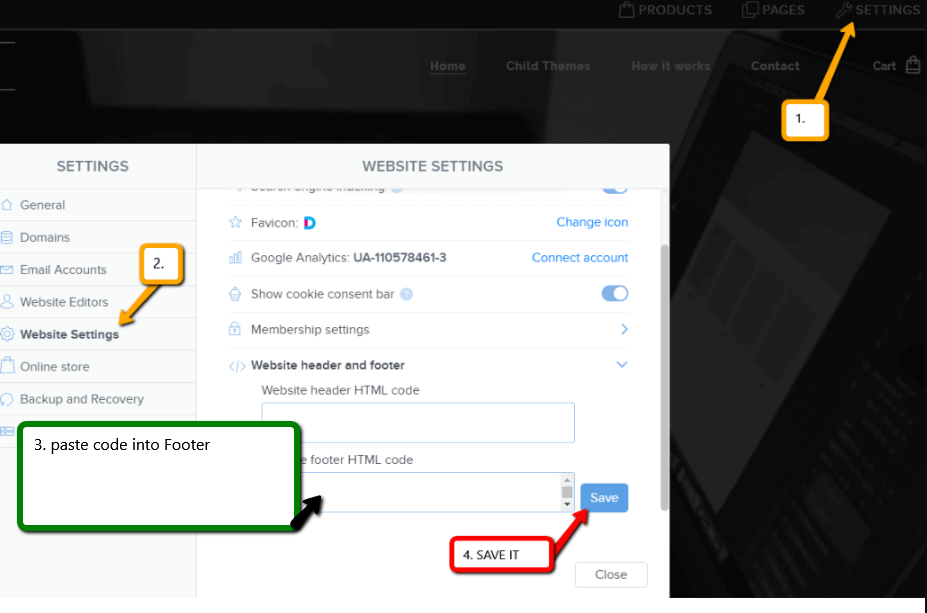
Save changes and you are done – footer is working in pubished version of your Webnode website.
2. I have a project in the Free version or I have purchased the Premium Plan Limited, Mini.
If you have a website / e-shop created in the Free version or you have purchased the Limited or Mini Premium Plan, then you must insert the code in the footer on each page separately.
1. Paste the code in the footer of each page:
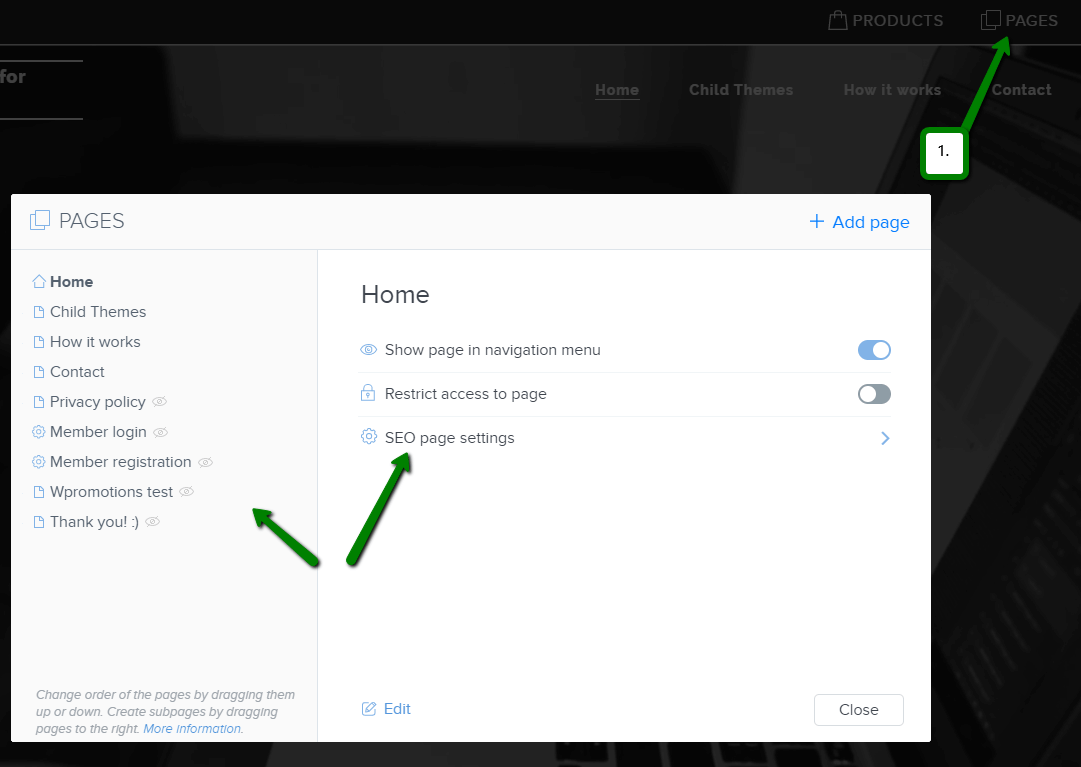
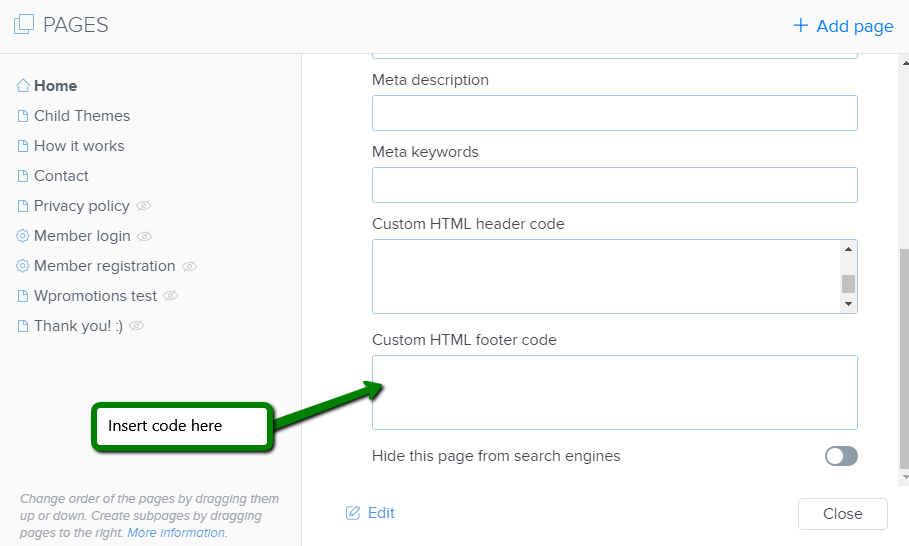
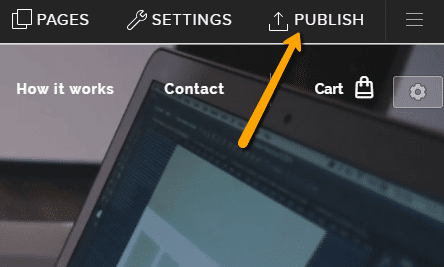
Great job! Now, publish the changes and you’re done 🙂
More awesome tutorials

How to connect Google Calendar to my website in Webnode?
Google Calendar - great help with organizing your time Google Calendar is a web application for organizing your time. In this tutorial, we'll learn how to insert Google Calendar into a Webnode website. 1. The first step is to create an account with Google - here 2. ...
How to change the email in a Webnode contact form?
Do you need to change the email in the contact form in Webnode? The email in the Webnode contact form is pre-set to the email you use to log in to Webnode. If you want to change the email in the contact form, follow these instructions: 1. Login to the...

How do I easily link my Facebook to my website in Webnode?
Do you need to insert a widget for linking a Facebook site to a website? In tutorial How to add a social network icons (FB and Instagram) to the top of the Webnode website? I have shown an elegant solution for linking soc. networks with your website. Let's now...
Do you like this tutorial? Share it, please 🙂