Would you like to add your own footer to the web / e-shop in Webnode?
With my simple tutorial, you will definitely be able to do it. Just subscribe to the newsletter and get the code.
Edit the URL and text in my code and paste it into the footer of all pages of your website 🙂
2 easy steps:
1. Get the code and edit (so that the code contains the correct URLs)
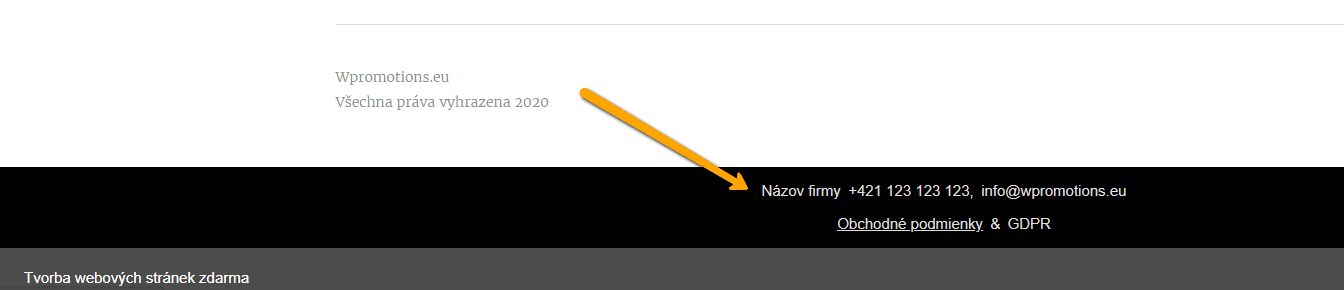
Example of own footer in Webnode with a link to the company name, phone number, email + T&S & GDPR.
Let’s do it!
- Please subscribe to the news on my website and get a pre-prepared code:

2. Edit the URLs and footer text to make everything work properly with your site.
- On line no. 47 change the URL and Company Name
- On line no. 48. change phone no
- On line no. 49 change email
- On lines no. 54 and no. 55 edit the URLs for the terms and conditions and GDPR.
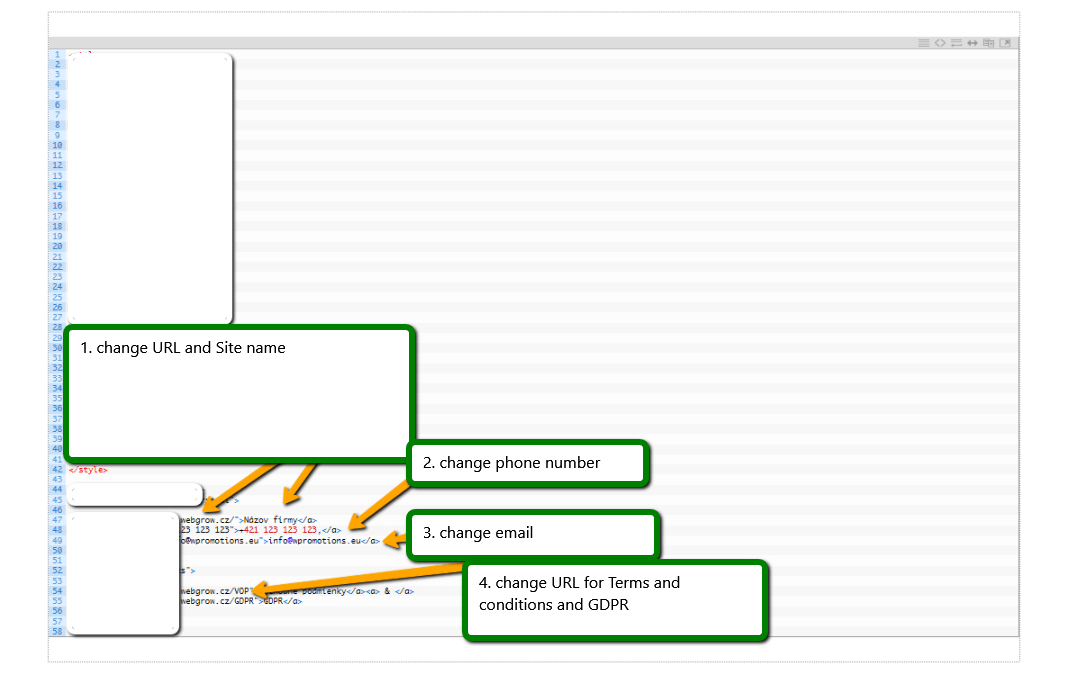
TIP: If you would like to have a link in the footer only to the terms and conditions + GDRP, then delete line no. In the code. 47,48,49.
3. If you have a code, copy and paste it into the header of all pages.
Choose how you enter the code, depending on which Premium Plan you have purchased from Webnode:
1. I have purchased Premium Plan STANDARD or PROFI
If you have purchased Standard or Profi Premium Plan from Webnode, you can paste the code into all pages of the site with a single paste.
At the top of the editor, click “Settings” – “Website Settings” – “HTML Header / Footer” – “HTML Footer“.
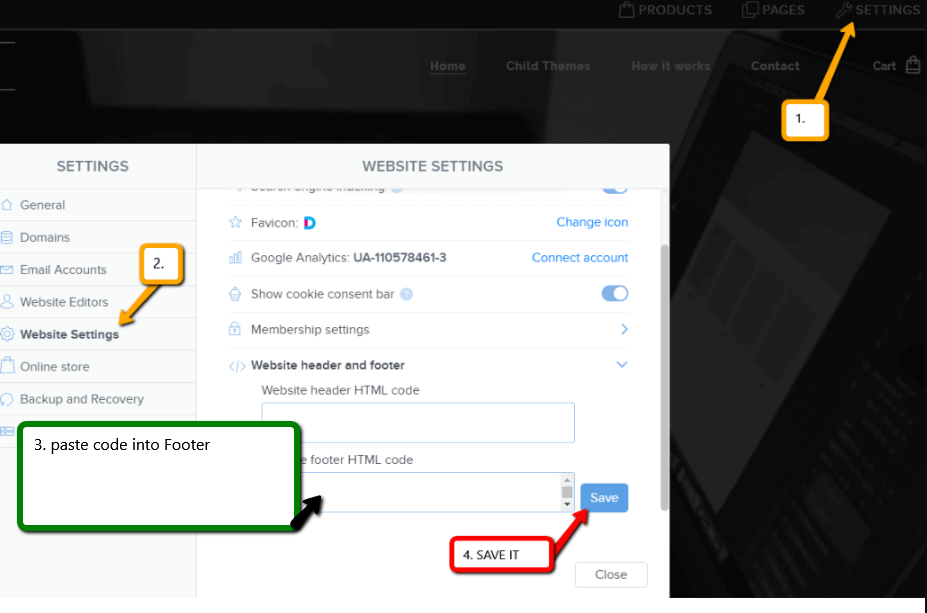
Save changes and you are done – footer is working in pubished version of your Webnode website.
2. I have a project in the Free version or I have purchased the Premium Plan Limited, Mini.
If you have a website / e-shop created in the Free version or you have purchased the Limited or Mini Premium Plan, then you must insert the code in the footer on each page separately.
1. Paste the code in the footer of each page:
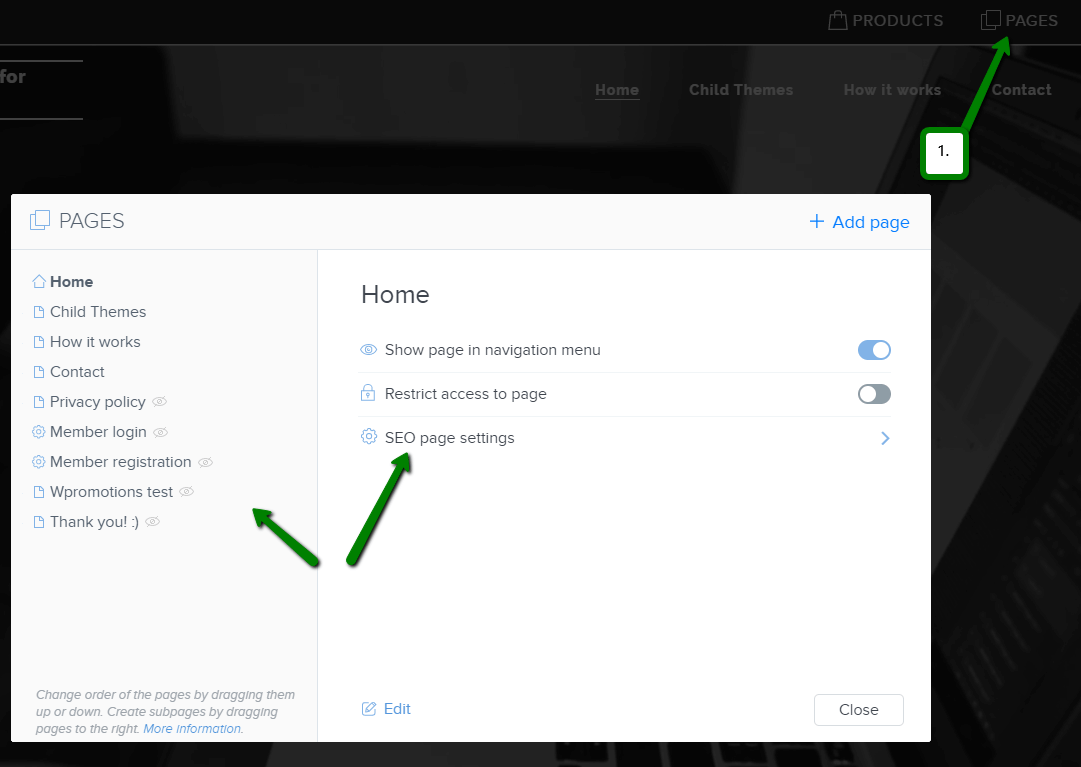
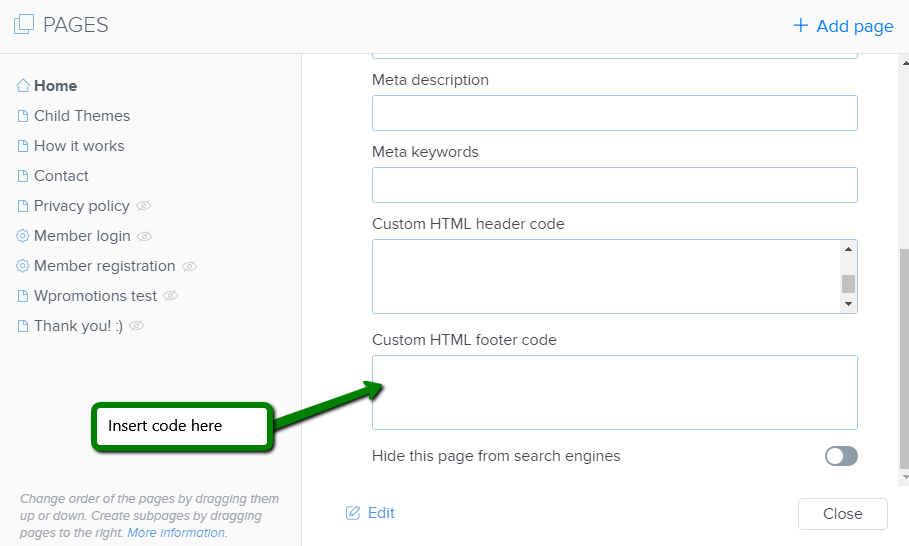
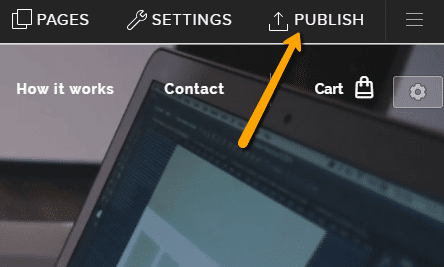
Great job! Now, publish the changes and you’re done 🙂
More awesome tutorials

How to easily set up Google Map in Webnode?
Your map in Webnode does not work? Sometimes, when you type an address, the system can not find a specific address, so the map does not work in the published version of the site. In this tutorial i will show u two solutions to fix the problem. So follow these...

How to add an online chat to the Webnode website? FREE!
Do you want to add an online chat on your Webnode website for faster communication with your clients? In this tutorial, I will show you how to easily get a code for an online chat on your website. 1. The first step is registering on the official...

How to create your own company logo? It’s for free
Do you want to create own company logo? You can create own brand new logo in few minutes using free service. I highly recommend it. Its free. 1. Click on this link, which will redirect to official website of this awesome service: Logo Maker. 2. Choose...

How to add a Scroll to Top button to website in Webnode?
Videotutorial in Slovak language with ENGLISH subtitlesDo you want to add a Scroll Top button on your Webnode website? In tutorial "How to create anchor links in Webnode? Click&Scroll" i've shown how to redirect (scroll) to a specific place on the web. An...

How to add a responsive table to a Webnode website?
Do you need to add a table to your Webnode website? In Webnode editor this function is missing, but the table can be created using external app - tablesgenerator.com. Instructions for creating and inserting a spreadsheet for Webnode Webpages. 1....

How to easily set an automatic redirection on your Webnode website?
Looking for a way to automatically redirect your website visitor to another website? (URL address) Follow these steps: 1. Edit and copy the HTML code below. In the code, edit the URL value. In place of the URL, enter the URL address (website) to which you want...
How to add a countdown timer in Webnode?
Countdown time in the WebnodeDo you need to add countdown timer HTML code to your website? Are you planning a wedding, party or opening a new restaurant and want to keep everyone on edge? No problem.1. Use the script to count down the time:xxx xxx On line no. 1 you...
How to avoid copying (stealing) from your website?
Do you want to avoid copying content from your website? This HTML code will allow your site to block the right click of the mouse on your site to prevent text copying. The keyboard shortcut (ctrl + c + ctrl + v) does not limit this, but it could discourage any...
Do you like this tutorial? Share it, please 🙂