How to add animation – falling confetti to Webnode websites?
I got an question in my Webnode free support if it is possible to add an animation of falling confetti on the Webnode website.
Yes, it is possible – for everyone who is looking for “falling confetti on the web“, I have prepared a code that displays falling confetti on your website or e-shop.
It will be something like falling snowflakes, which you will find in the How to add a falling snow animation to the Webnode website?
Let’s do it!
Demo:
Quick Tutorial: adding “falling confetti” animation
1. Adding falling confetti to the website is very easy – just sign up for my newsletter and get the code to embed on the web.
The first step is therefore to obtain this code. Please subscribe to my newsletter to get the code:

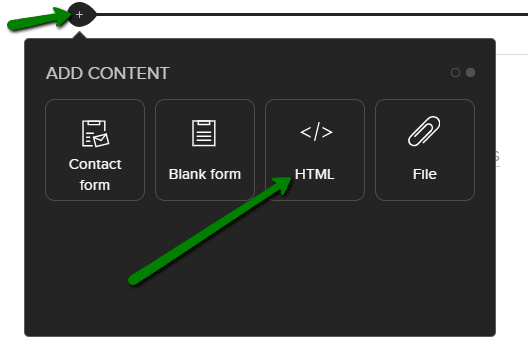
2. Log in to web editing in Webnode and now paste the pre-prepared code on the website using the “+” and “HTML” buttons.
Paste the code on each page of the website where you want the confetti to appear.
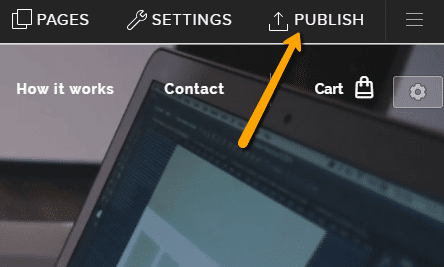
3. Publish it and you’re done 🙂
I hope you managed to add falling confetti to your website and everything went well.
I will be happy if you write me in the comment if you are satisfied with the confetti animation:)
Thank you for subscribing and i wish u good luck with your online business.
More awesome tutorials

3 simple ways how to embed an online MP3 player on the web in Webnode
Are you looking for a simple way how to embed MP3 player on Webnode site? In this tutorial I will show you three easy ways (free of charge). 1. The first way is to use the function directly in the Webnode editor. Click "+" and "File". Mp3 will start in a...

How to add a custom search box to my website/e-shop in Webnode?
In the tutorial How to add a product searchbox in Webnode e-shop? I've shown a simple solution for adding your own search engine. Let's take a look at another search engine and your other options.Create your own search box using Google Custom Search Engine Find...

How to change the URL address of a Webnode page, article or product?
Do you need to change the URL for a Webnode page? In this tutorial, I'll show you how to change the URL of a page, article, and product in Webnode. 1. Change the URL of the page. In the top editor bar, click on "Pages" - "Choose a page" - "SEO page setup". and...

How to change the image for a shared Facebook link in Webnode?
You do not see the (preview) image when sharing a website in Facebook? If you share your website link on Facebook, it may happen that no picture appears or an image you do not want appears. In the following steps, you'll learn how to change the image for the shared...

How to easily add a website to the Google My Business?
Instruction for registration in the catalog of companies My Business - Google. *Service is for FREE. Let's now take a look at the largest catalog of companies in the world - Google My Business. Registering in My Business is an excellent way to show your business on...

How to change the color of a label when copying text?
Are you looking for a way to change the color of the label (mark) when copying? This color is preset in blue. In this tutorial, I'll show you how you can easily change the color and thus improve the look of your site. #Let's do it 🙂 1. Log in to editing the...

12 biggest free pictures stocks for commercial use. Pictures for free.
In this tutorial you will find links to 12 free photo services. All images are licensed under CC0 license. ✔ Images are for commercial use. If you've downloaded images through Google, it's wrong! When you are creating own website, I recommend you these 12 free sources...

How to add Webnode website to Search engine Bing.com?
Looking for a way to add your website to Bing.com? Read more! In tutorial How to add a Webnode website to Google Search? I have shown how to link your site to Google. (automatic index) Now let's look at Bing.com. Bing.com is the second most used search engine and...

How to download an invoice in Webnode?
Are u looking for your invoice for paid services at Webnode? In this tutorial I will show you exactly where you will find your invoice in Webnode. You can download the invoice directly in your project's administration. (cms) Important note: Only the site owner (the...
Do you like this tutorial? Share it, please 🙂