
Would you like to embed a GIF image on a Webnode site?

Webnode editor does not allow .gif format when you embed them as an image.
For this reason, you must first upload the desired .GIF image to an external service to get the image URL.
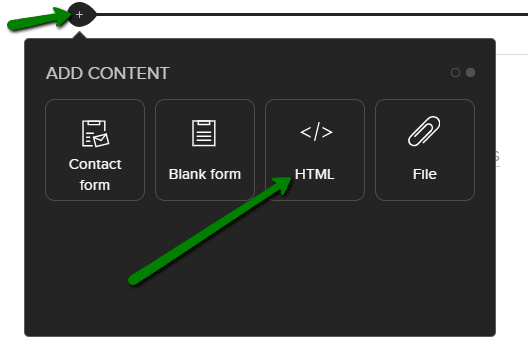
Paste the URL into the code and paste the HTML code into your website in Webnode using the “+” and “HTML” buttons.
How to upload a .GIF image to a Webnode website
1. Upload the .GIF image to an external service, copy the URL of the image and paste it into the code instead of the URL-PICTURE. *If you upload the image to another server, make sure you have the URL with the ending image (.gif).
2. In the code, you can adjust the max-width value to the desired image size. In the code, the image size is set to 100%. *Changing this value eg. you can reduce the image by 50% to 50%.
3. Paste the code into your website using the “+” and “HTML” buttons. (insert the code where you want the gif image to appear)
The necessary code to insert a GIF image is:

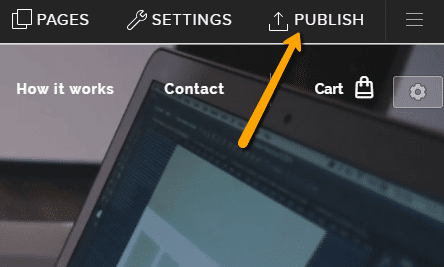
Good job! – when you paste the code, the .GIF image will appear in the published version of your website.
More awesome tutorials

3 simple ways how to embed an online MP3 player on the web in Webnode
Are you looking for a simple way how to embed MP3 player on Webnode site? In this tutorial I will show you three easy ways (free of charge). 1. The first way is to use the function directly in the Webnode editor. Click "+" and "File". Mp3 will start in a...

How to add a custom search box to my website/e-shop in Webnode?
In the tutorial How to add a product searchbox in Webnode e-shop? I've shown a simple solution for adding your own search engine. Let's take a look at another search engine and your other options.Create your own search box using Google Custom Search Engine Find...

How to add an online reservation system to Webnode? It’s Free!
Do you need an powerful online booking reservation system? Works perfectly with Webnode.Whatever you do, Reservio is a great choice for organizing your time! 🙂 And what does the Reservio online booking system offer to you? a clear calendar where you can find...

How to connect own domain or subdomain with Webnode? Set DNS records easily
Do you want to change the URL of the "webnode" website to your own domain f.e "mydomain.com" or "e-shop.mydomain.com" ? Using your own domain is a feature included in the Premium plans: Limited, Mini, Standard, and Profi. After purchasing one of the Premium...

How to set redirection to external URL from a bookmark in the menu on Webnode?
Are you looking for a way to set redirect from Menu in Webnode to a different website (by clicking on the menu item) ? Let's do it! 🙂 1. Create a New Page in Menu. 2. Edit the code below as follows: You can adjust the value of line...

How to easily add a website to the Google My Business?
Instruction for registration in the catalog of companies My Business - Google. *Service is for FREE. Let's now take a look at the largest catalog of companies in the world - Google My Business. Registering in My Business is an excellent way to show your business on...

How to change the color of a label when copying text?
Are you looking for a way to change the color of the label (mark) when copying? This color is preset in blue. In this tutorial, I'll show you how you can easily change the color and thus improve the look of your site. #Let's do it 🙂 1. Log in to editing the...

12 biggest free pictures stocks for commercial use. Pictures for free.
In this tutorial you will find links to 12 free photo services. All images are licensed under CC0 license. ✔ Images are for commercial use. If you've downloaded images through Google, it's wrong! When you are creating own website, I recommend you these 12 free sources...

How to add Webnode website to Search engine Bing.com?
Looking for a way to add your website to Bing.com? Read more! In tutorial How to add a Webnode website to Google Search? I have shown how to link your site to Google. (automatic index) Now let's look at Bing.com. Bing.com is the second most used search engine and...
Do you like this tutorial? Share it, please 🙂