
Would you like to embed a GIF image on a Webnode site?

Webnode editor does not allow .gif format when you embed them as an image.
For this reason, you must first upload the desired .GIF image to an external service to get the image URL.
Paste the URL into the code and paste the HTML code into your website in Webnode using the “+” and “HTML” buttons.
How to upload a .GIF image to a Webnode website
1. Upload the .GIF image to an external service, copy the URL of the image and paste it into the code instead of the URL-PICTURE. *If you upload the image to another server, make sure you have the URL with the ending image (.gif).
2. In the code, you can adjust the max-width value to the desired image size. In the code, the image size is set to 100%. *Changing this value eg. you can reduce the image by 50% to 50%.
3. Paste the code into your website using the “+” and “HTML” buttons. (insert the code where you want the gif image to appear)
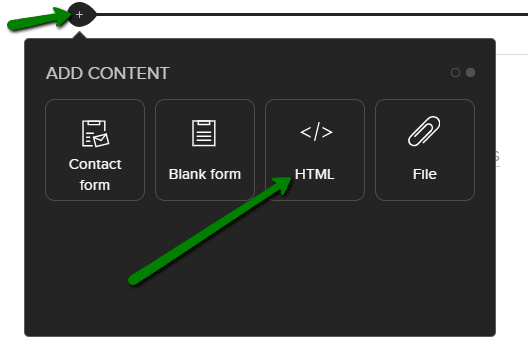
The necessary code to insert a GIF image is:

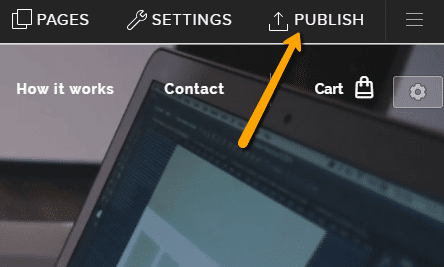
Good job! – when you paste the code, the .GIF image will appear in the published version of your website.
More awesome tutorials

How to change the image for a shared Facebook link in Webnode?
You do not see the (preview) image when sharing a website in Facebook? If you share your website link on Facebook, it may happen that no picture appears or an image you do not want appears. In the following steps, you'll learn how to change the image for the shared...

How to easily add a website to the Google My Business?
Instruction for registration in the catalog of companies My Business - Google. *Service is for FREE. Let's now take a look at the largest catalog of companies in the world - Google My Business. Registering in My Business is an excellent way to show your business on...

How to download an invoice in Webnode?
Are u looking for your invoice for paid services at Webnode? In this tutorial I will show you exactly where you will find your invoice in Webnode. You can download the invoice directly in your project's administration. (cms) Important note: Only the site owner (the...
How to easily edit the content of 404 page in Webnode?
Looking for a way to edit page 404 (page not found) in Webnode? In this tutorial, you will learn how to edit the 404 Webnode page. Page 404 is important if a link to your site no longer exists. Page 404 will always appear whenever a visitor visits a non-existent page...

How to add a conversion code in Webnode?
Looking for a way to embed a conversion code for Webnode from Adwords, etc. ? What is that conversion? Simply: Conversion is something you want a visitor to do on your site (filling in a form, purchasing a product in an e-shop, etc.) Conversion is the...

How to add a social network icons (FB and Instagram) to the top of the Webnode website?
You are looking for a way to insert the social icons at the Webnode website? (to the top of the site) In tutorials How do I easily link my Facebook to my website in Webnode? and How to link your Instagram with website in Webnode? I've shown how you can link...

How To Create A Professional Email Signature? Simply and FREE
Looking for a easy way to create an email signature? (Gmail, Webmail, Outlook, etc.) Email signature is an inevitable part of modern communication between the customer and the entrepreneur. Business email will increase credibility in the eyes of your potential...

How to add link to an email and phone number in Webnode?
Do you need to add a link to an email or phone number on the site created with Webnode? Email communication is a fast, simple and most commonly used link between you and your customers. For most potential customers, however, the main task is time, which can lead to...

How to create anchor links in Webnode? Click&Scroll
Videotutorial with ENG subtitles The anchor works as a link within a single page. You do not see a different page (web) through the link, but you will be taken to another place on the page you are currently viewing. Anchor formation (tabs) is divided into two...
Do you like this tutorial? Share it, please 🙂