
Would you like to embed a GIF image on a Webnode site?

Webnode editor does not allow .gif format when you embed them as an image.
For this reason, you must first upload the desired .GIF image to an external service to get the image URL.
Paste the URL into the code and paste the HTML code into your website in Webnode using the “+” and “HTML” buttons.
How to upload a .GIF image to a Webnode website
1. Upload the .GIF image to an external service, copy the URL of the image and paste it into the code instead of the URL-PICTURE. *If you upload the image to another server, make sure you have the URL with the ending image (.gif).
2. In the code, you can adjust the max-width value to the desired image size. In the code, the image size is set to 100%. *Changing this value eg. you can reduce the image by 50% to 50%.
3. Paste the code into your website using the “+” and “HTML” buttons. (insert the code where you want the gif image to appear)
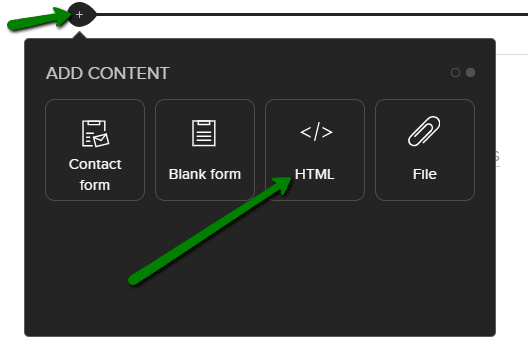
The necessary code to insert a GIF image is:

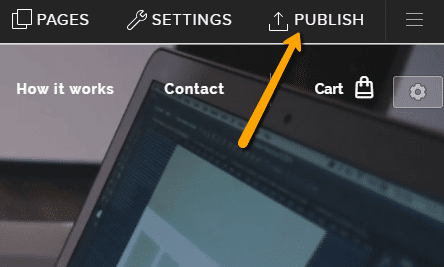
Good job! – when you paste the code, the .GIF image will appear in the published version of your website.
More awesome tutorials

How to create anchor links in Webnode? Click&Scroll
Videotutorial with ENG subtitles The anchor works as a link within a single page. You do not see a different page (web) through the link, but you will be taken to another place on the page you are currently viewing. Anchor formation (tabs) is divided into two...

How to add a discussion on a Webnode website? (DISQUS)
YouTube Video Tutorial (english subtitles) How to easily create a discussion using - disqus.com In this tutorial, you will learn how to place a discussion on the Webnode website so yours visitors can add comments to the site. We will use an external application - HTML...

How to easily set up Google Map in Webnode?
Your map in Webnode does not work? Sometimes, when you type an address, the system can not find a specific address, so the map does not work in the published version of the site. In this tutorial i will show u two solutions to fix the problem. So follow these...

How to add an online chat to the Webnode website? FREE!
Do you want to add an online chat on your Webnode website for faster communication with your clients? In this tutorial, I will show you how to easily get a code for an online chat on your website. 1. The first step is registering on the official...

How to create your own company logo? It’s for free
Do you want to create own company logo? You can create own brand new logo in few minutes using free service. I highly recommend it. Its free. 1. Click on this link, which will redirect to official website of this awesome service: Logo Maker. 2. Choose...

How to add a Scroll to Top button to website in Webnode?
Videotutorial in Slovak language with ENGLISH subtitlesDo you want to add a Scroll Top button on your Webnode website? In tutorial "How to create anchor links in Webnode? Click&Scroll" i've shown how to redirect (scroll) to a specific place on the web. An...

How to add a responsive table to a Webnode website?
Do you need to add a table to your Webnode website? In Webnode editor this function is missing, but the table can be created using external app - tablesgenerator.com. Instructions for creating and inserting a spreadsheet for Webnode Webpages. 1....

How to easily set an automatic redirection on your Webnode website?
Looking for a way to automatically redirect your website visitor to another website? (URL address) Follow these steps: 1. Edit and copy the HTML code below. In the code, edit the URL value. In place of the URL, enter the URL address (website) to which you want...
Do you like this tutorial? Share it, please 🙂